> ## Documentation Index
> Fetch the complete documentation index at: https://docs.getourchest.com/llms.txt
> Use this file to discover all available pages before exploring further.
# Guest access
> Add an email so a guest keeps their Chests on another phone
A guest joins with a name. There is no password. The Chests stay on that phone until an email is added.
## What is a guest?
You are a guest if you joined from an invite and have not added an email. **Settings** shows **Guest**.
The screen says **Without an email, your Chests stay only on this phone.**
A guest can open those Chests, add photos, and leave a Chest. A guest cannot create a Chest. The home screen says **Open an invite link to join a Chest.** See [Join a Chest](../people/join).
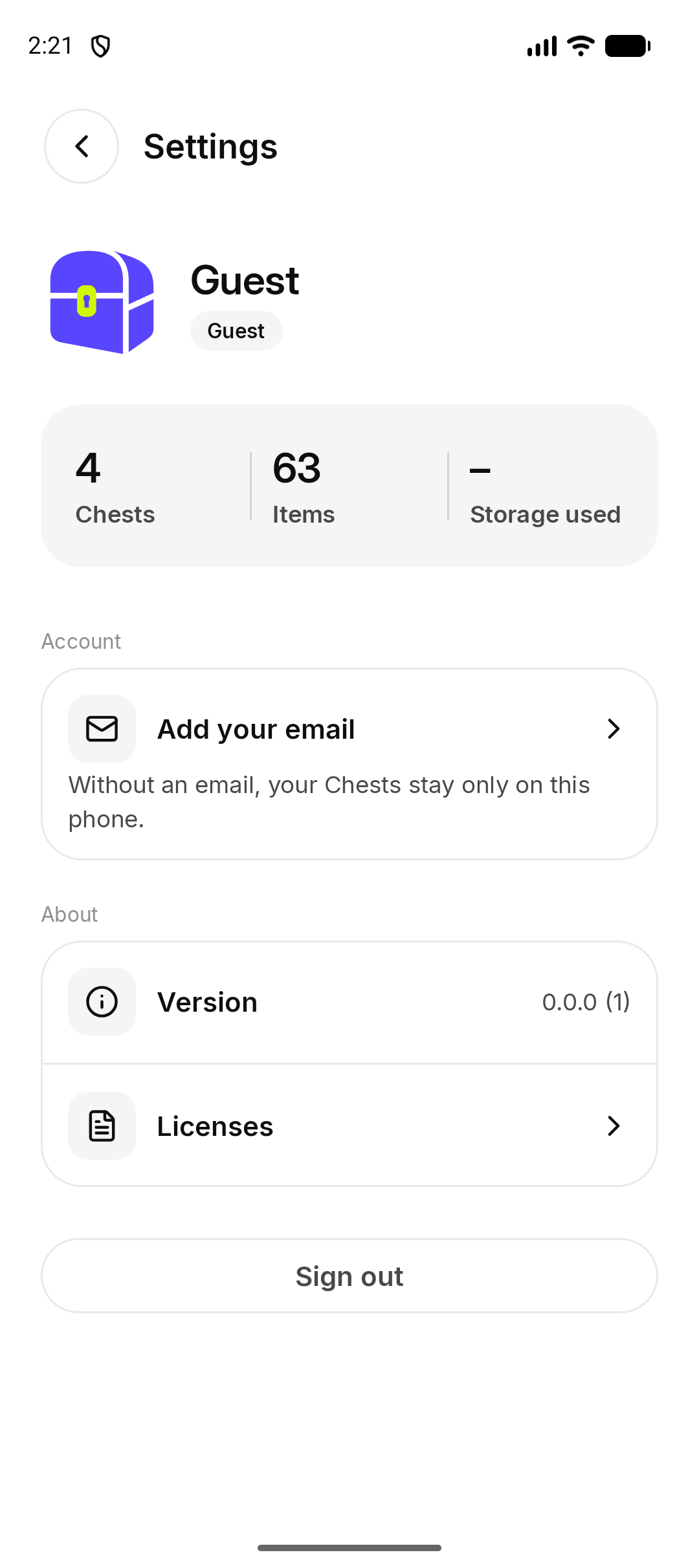 *Android. On iPhone, the same screen shows **Guest** and **Add your email**.*
## How do I add my email?
1. Open **Settings** and tap **Add your email**.
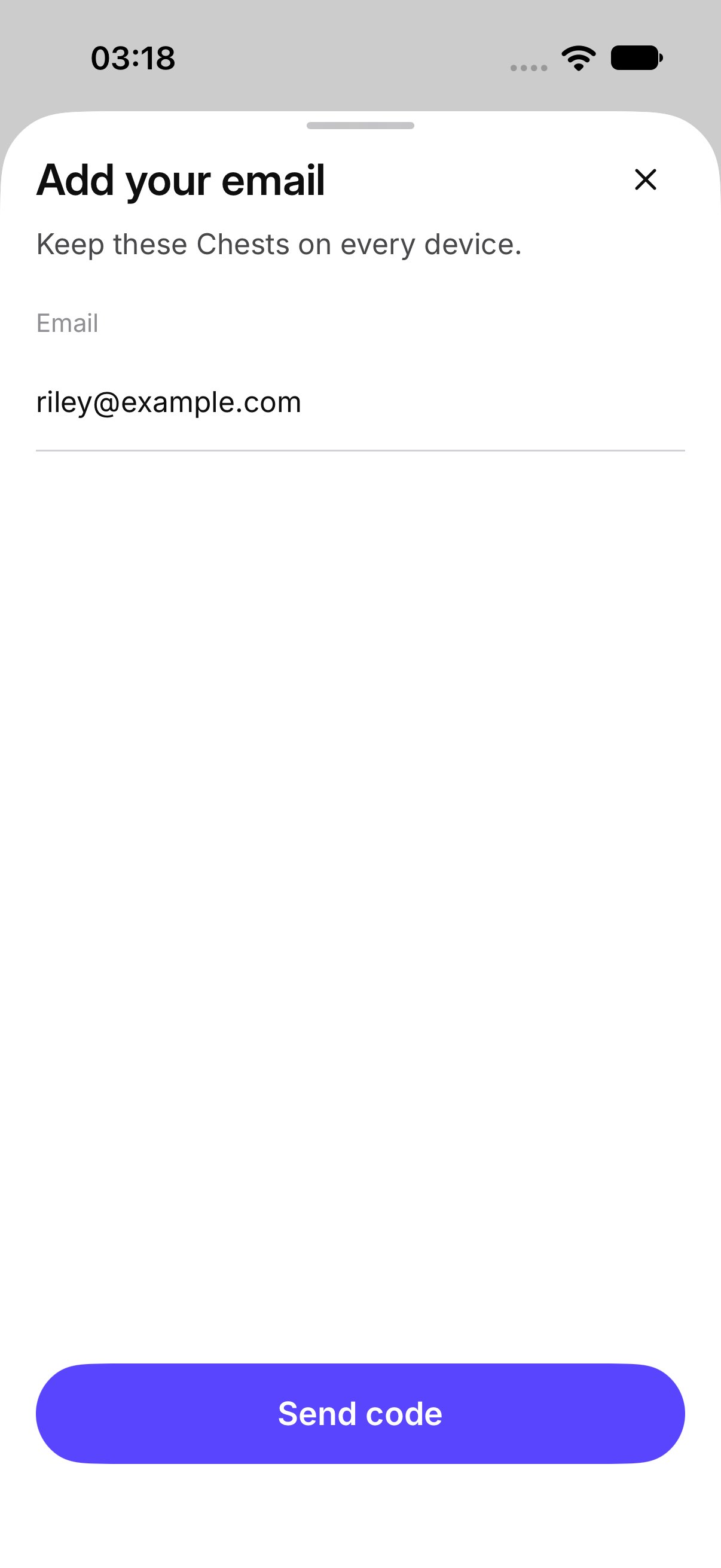
2. The sheet says **Keep these Chests on every device.** Enter the email and tap **Send code**.
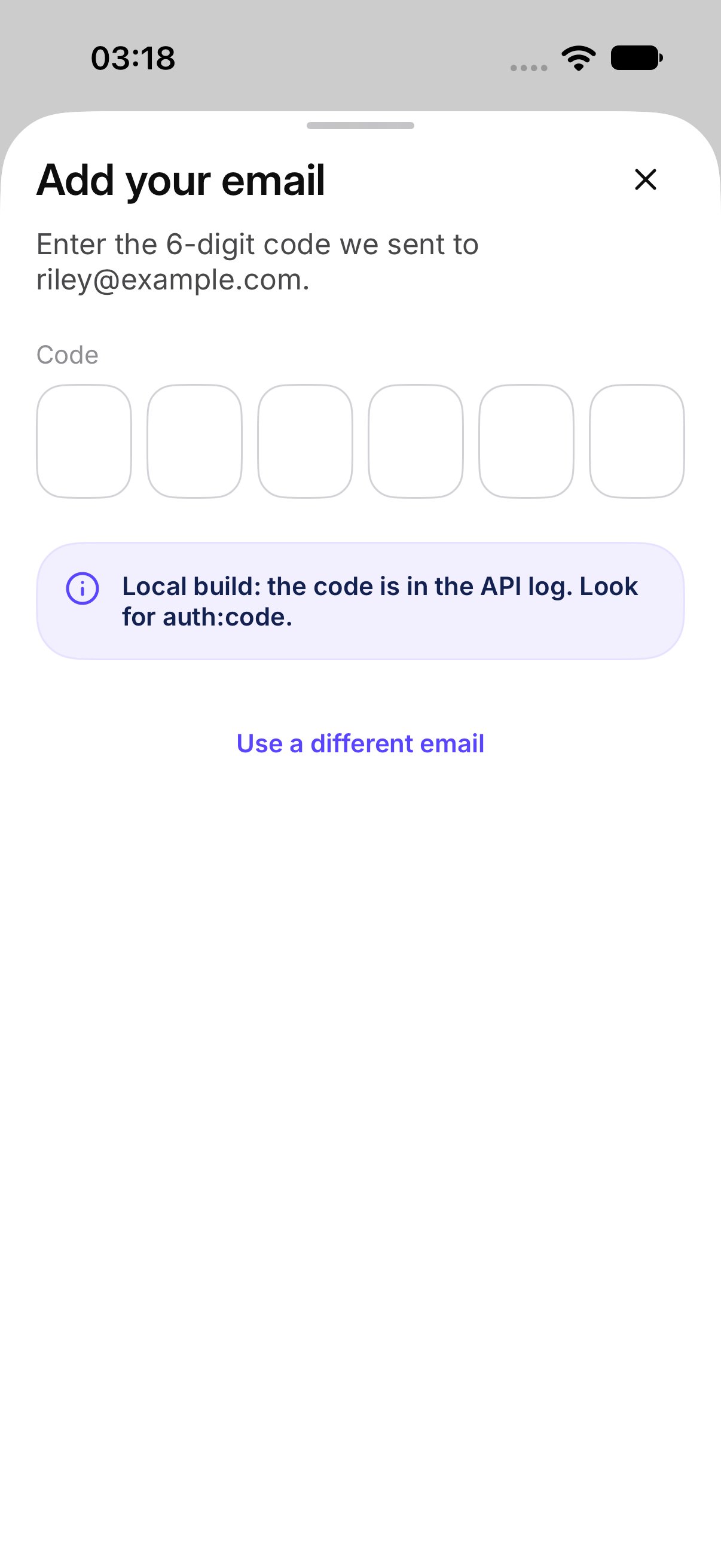
3. On **Check your email**, enter the 6-digit code.
When the code is right, those Chests stay with you. Your name in the Chest does not change. This is the same account, not a second one.
Tap **Use a different email** if you want to send the code somewhere else.
*Android. On iPhone, the same screen shows **Guest** and **Add your email**.*
## How do I add my email?
1. Open **Settings** and tap **Add your email**.
2. The sheet says **Keep these Chests on every device.** Enter the email and tap **Send code**.
3. On **Check your email**, enter the 6-digit code.
When the code is right, those Chests stay with you. Your name in the Chest does not change. This is the same account, not a second one.
Tap **Use a different email** if you want to send the code somewhere else.
 ## What if I lose this phone before I add an email?
Ask the owner for a new invite. The Chest and its files stay. The new invite is a new guest until an email is added. The old phone's guest access does not move by itself.
## What if that email is already in use?
OurChest says **That email already has an OurChest account. Sign in with it instead; your guest Chests stay on this phone until you sign out.**
The email is not moved onto this guest. Sign in to that account if it is yours, or tap **Use a different email**.
This documentation is built and hosted on [Mintlify](https://mintlify.com), a developer documentation platform.
## What if I lose this phone before I add an email?
Ask the owner for a new invite. The Chest and its files stay. The new invite is a new guest until an email is added. The old phone's guest access does not move by itself.
## What if that email is already in use?
OurChest says **That email already has an OurChest account. Sign in with it instead; your guest Chests stay on this phone until you sign out.**
The email is not moved onto this guest. Sign in to that account if it is yours, or tap **Use a different email**.
This documentation is built and hosted on [Mintlify](https://mintlify.com), a developer documentation platform.