> ## Documentation Index
> Fetch the complete documentation index at: https://docs.getourchest.com/llms.txt
> Use this file to discover all available pages before exploring further.
# Settings, devices, and signing out
> See your account, sign out a device, and sign out this phone
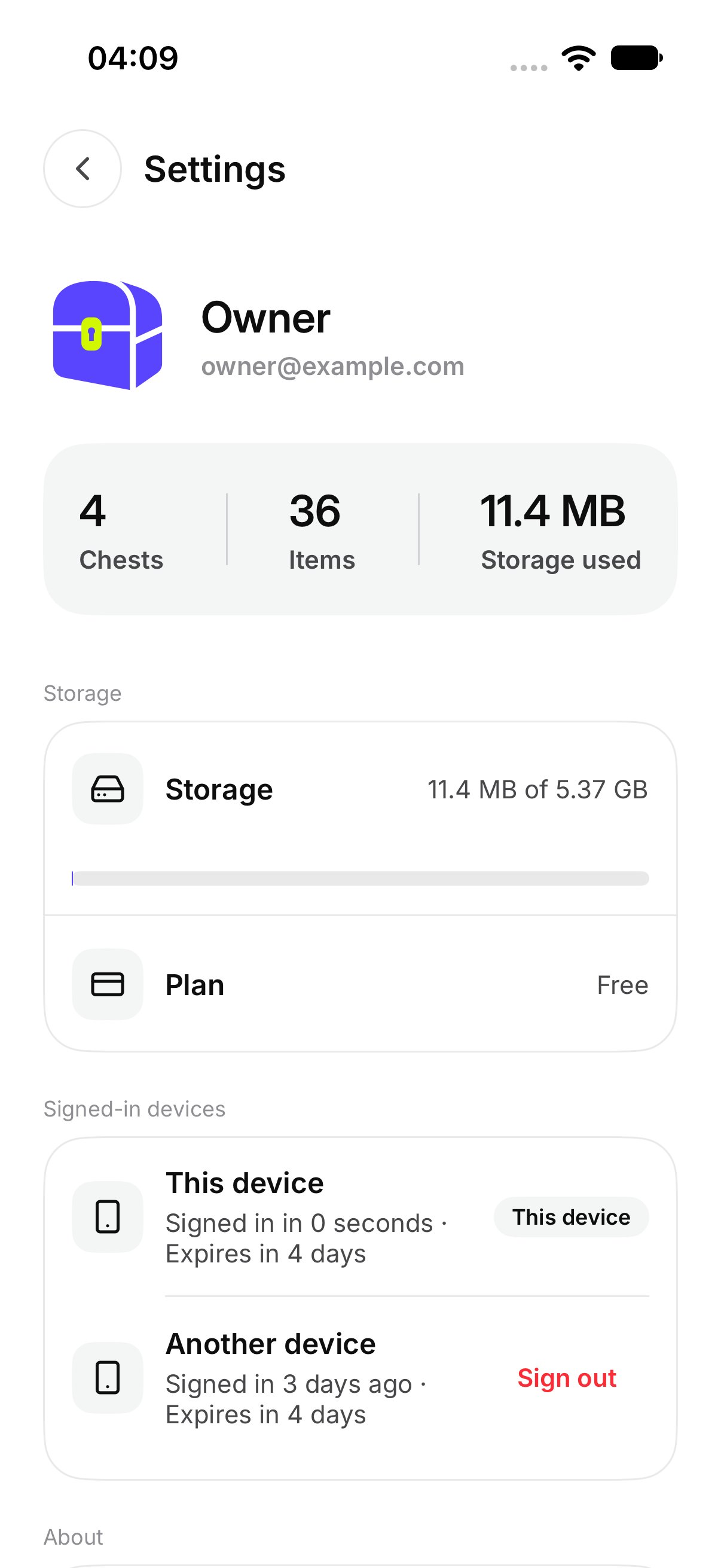
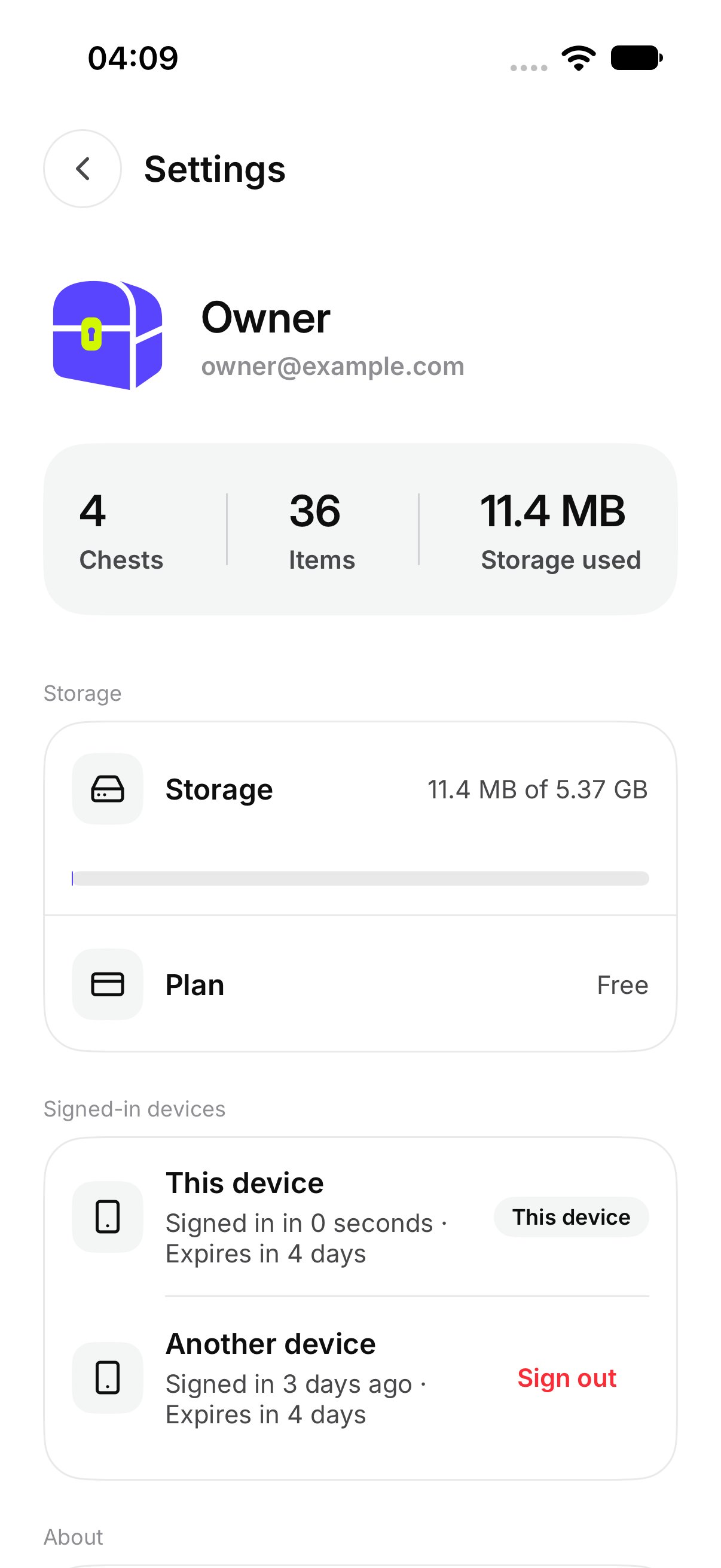
Open **Settings** from the account control on **Chests**. This page is the account. It is not [Chest settings](../chests/chest-settings).
## What is on Settings?
**Account** shows your name and email. Under that, **This device** is the phone you are holding, and **Member since** is when the account started.
**Storage** and **Plan** are summarized here. The detail is in [Storage and your plan](./storage-and-plan).
**Connected storage** is the list of Google Drive, Dropbox, and OneDrive. See [Connect Google Drive, Dropbox, or OneDrive](../connected-storage/connect).
Further down, **Signed-in devices** lists the phones that can open this account.
 ## How do I sign out one device?
Under **Signed-in devices**, open the device and tap **Sign out**.
OurChest asks **Sign out this device?** Confirm it. The screen says **Signing out a device removes its access right away.** After it finishes, you see **Signed out that device**.
The phone you are holding is marked **This device**. Signing that one out is the same as signing out of this phone.
## How do I sign out one device?
Under **Signed-in devices**, open the device and tap **Sign out**.
OurChest asks **Sign out this device?** Confirm it. The screen says **Signing out a device removes its access right away.** After it finishes, you see **Signed out that device**.
The phone you are holding is marked **This device**. Signing that one out is the same as signing out of this phone.
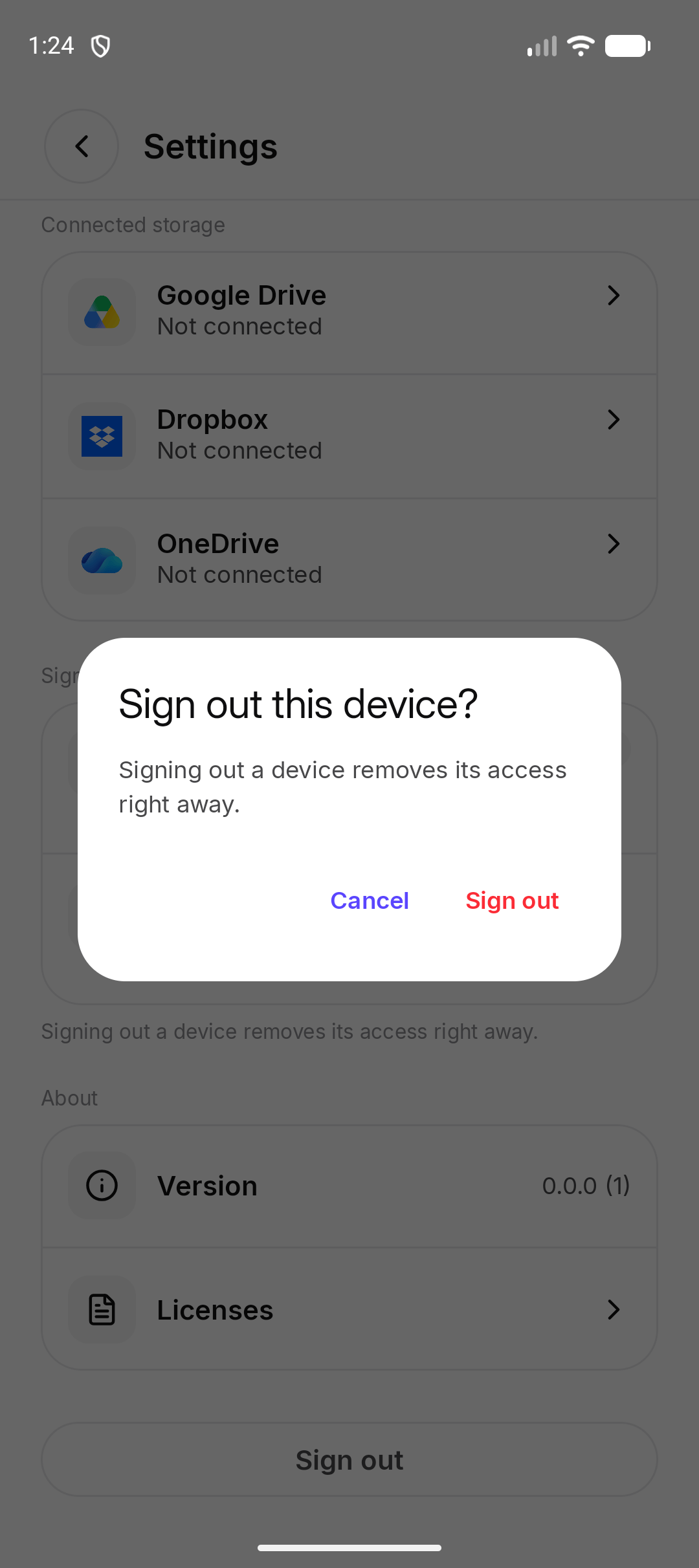 *Android. On iPhone, the confirmation uses the same words.*
## How do I sign out this phone?
At the bottom of **Settings**, tap **Sign out**.
OurChest asks **Sign out of OurChest on this phone?** and says **You can sign in again with your email.**
Confirm to leave. Your Chests stay on the account. [Sign in](../getting-started/sign-in) brings them back on this phone.
A guest sees **Sign out of guest access?** instead. The screen says **You will lose access to these Chests on this phone unless you add your email first.** [Add your email](./guest) before you sign out if you want to keep them.
*Android. On iPhone, the confirmation uses the same words.*
## How do I sign out this phone?
At the bottom of **Settings**, tap **Sign out**.
OurChest asks **Sign out of OurChest on this phone?** and says **You can sign in again with your email.**
Confirm to leave. Your Chests stay on the account. [Sign in](../getting-started/sign-in) brings them back on this phone.
A guest sees **Sign out of guest access?** instead. The screen says **You will lose access to these Chests on this phone unless you add your email first.** [Add your email](./guest) before you sign out if you want to keep them.
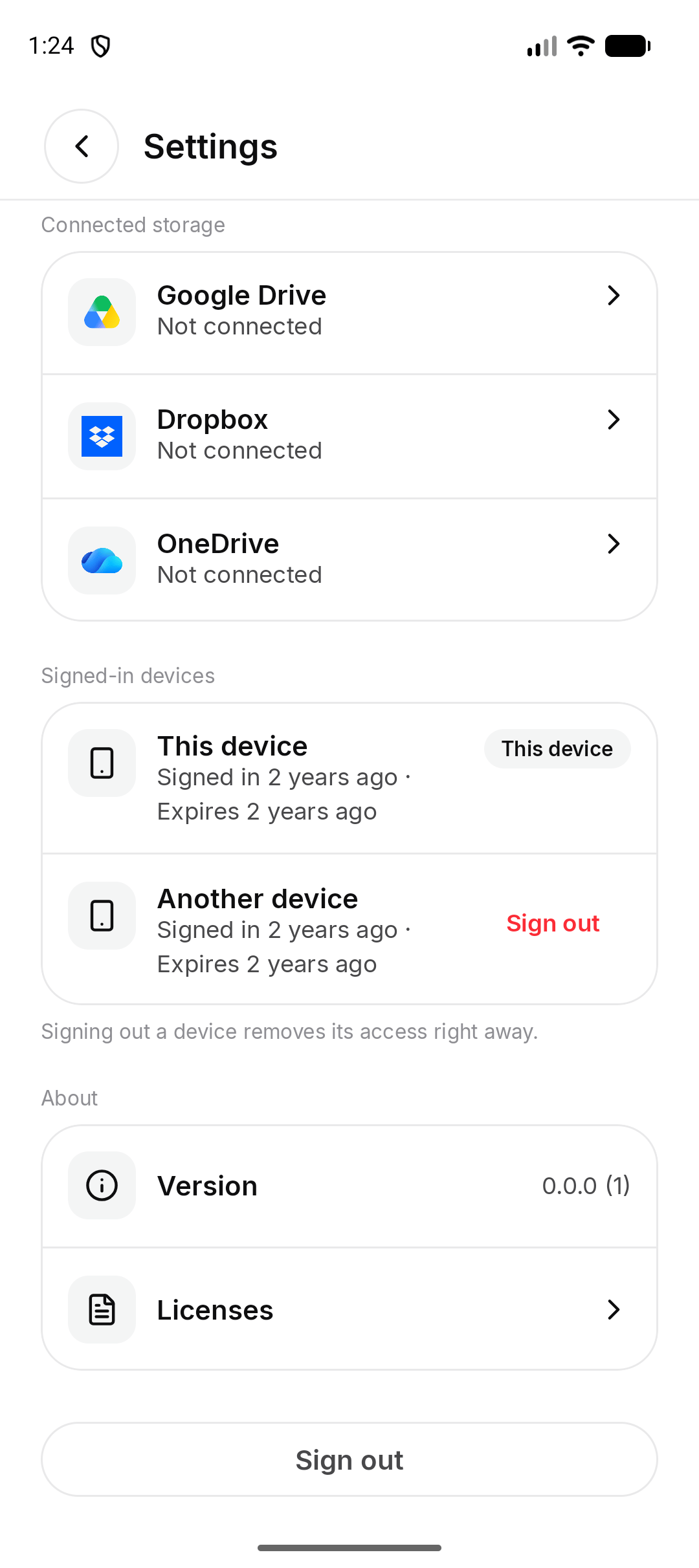 *Android. On iPhone, **Sign out** is at the bottom of Settings too.*
## Where are the licenses?
On Android, **About** shows **Version** and **Licenses**. Tap **Licenses** to read them.
On iPhone, **About** shows **Version**.
*Android. On iPhone, **Sign out** is at the bottom of Settings too.*
## Where are the licenses?
On Android, **About** shows **Version** and **Licenses**. Tap **Licenses** to read them.
On iPhone, **About** shows **Version**.
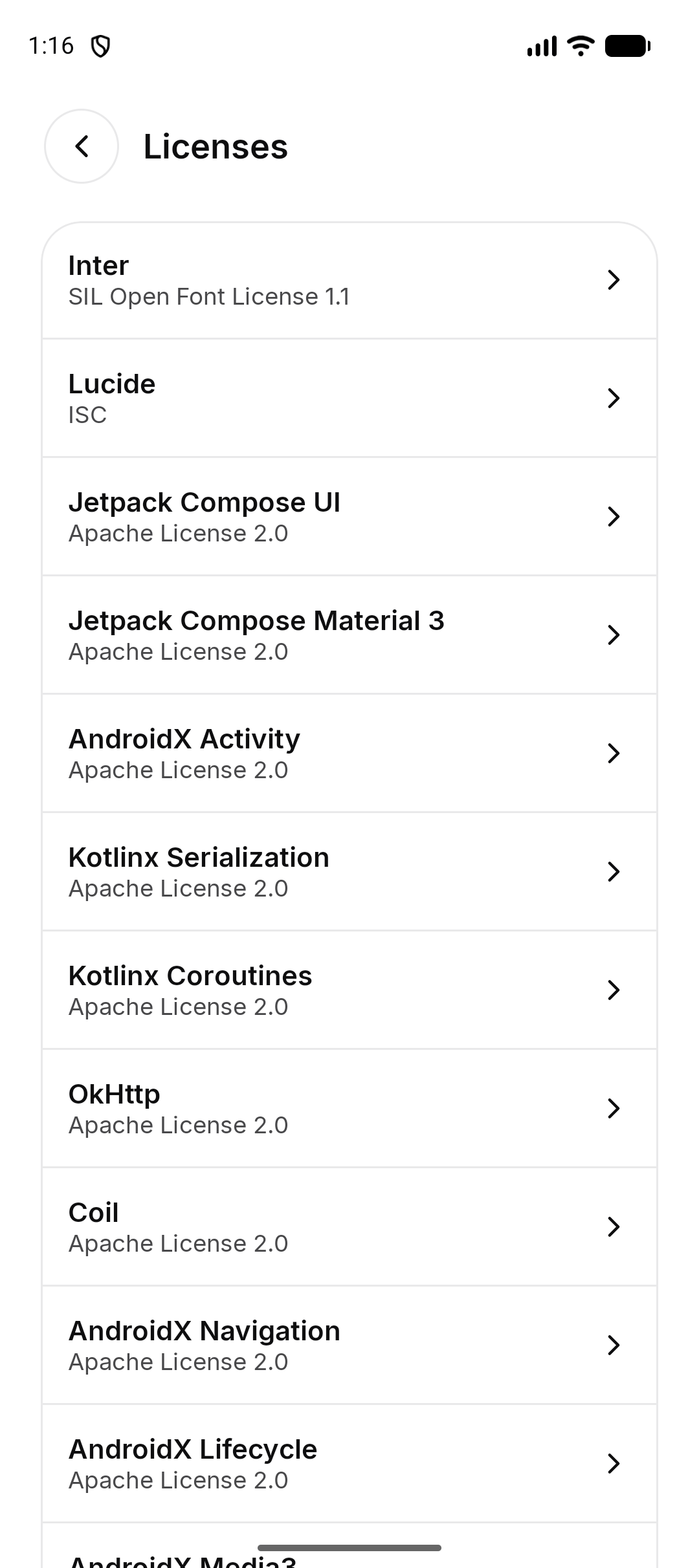 *Android.*
This documentation is built and hosted on [Mintlify](https://mintlify.com), a developer documentation platform.
*Android.*
This documentation is built and hosted on [Mintlify](https://mintlify.com), a developer documentation platform.