> ## Documentation Index
> Fetch the complete documentation index at: https://docs.getourchest.com/llms.txt
> Use this file to discover all available pages before exploring further.
# Chest settings
> Rename a Chest, choose who can join, leave, or delete an empty one
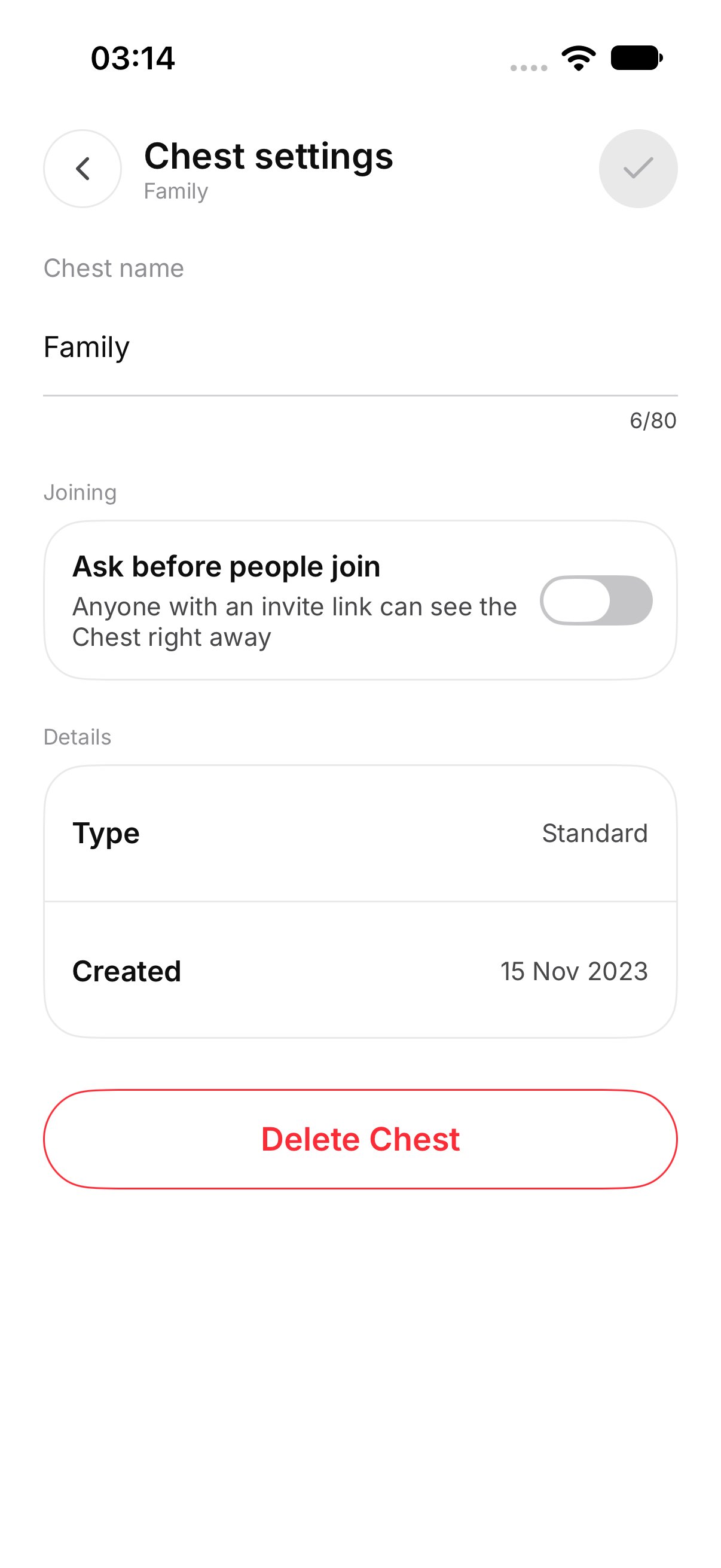
**Chest settings** is on the Chest menu and on the card menu from [Your Chests](./your-chests). What you see depends on whether you own the Chest.
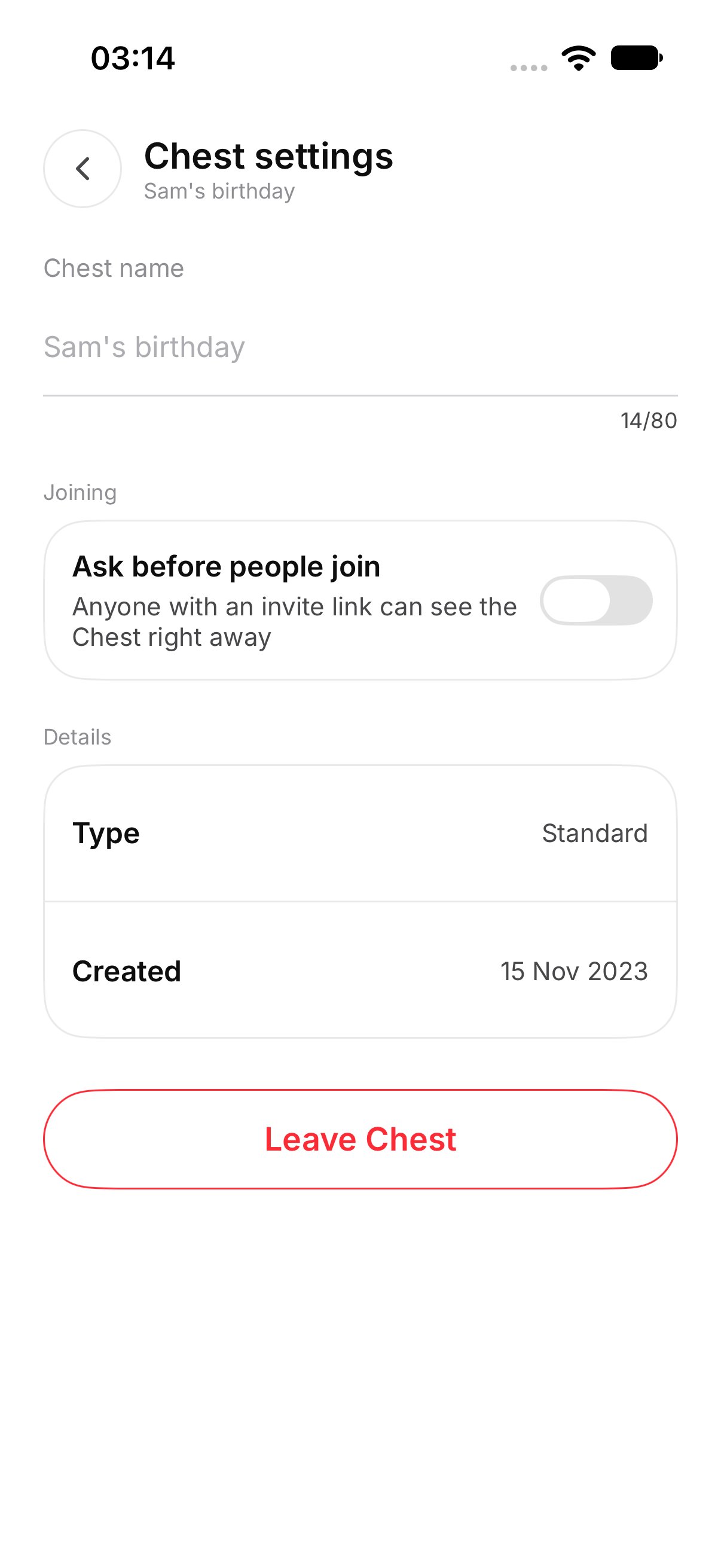
The owner can rename it, change who can join, invite people, and delete an empty Chest. A member's screen does not show invite, rename, the join switch, or delete. A member can leave.
## How do I rename a Chest?
1. Open **Chest settings**.
2. Edit **Chest name**.
3. Tap **Save**.
OurChest shows **Saved**. The name still has to be 1 to 80 characters.
If you leave without saving, OurChest asks **Discard changes?** and says **Your new name will not be saved.**
 ## How do I make people wait for approval?
Turn on **Ask before people join**.
Off, the screen says **Anyone with an invite link can see the Chest right away.**
On, it says **You approve each person in Members before they can see the Chest.** They wait until you tap **Allow** or **Decline**. See [Members](../people/members).
A new Chest starts with the switch off. People with a working invite can see it right away until you turn the switch on.
## How do I leave?
On a Chest you joined, open **Chest settings** or the card menu and tap **Leave Chest**.
OurChest asks you to confirm and says **You will no longer see it. Files you added stay.**
The owner does not see **Leave Chest**. Leaving is for someone who joined.
## How do I make people wait for approval?
Turn on **Ask before people join**.
Off, the screen says **Anyone with an invite link can see the Chest right away.**
On, it says **You approve each person in Members before they can see the Chest.** They wait until you tap **Allow** or **Decline**. See [Members](../people/members).
A new Chest starts with the switch off. People with a working invite can see it right away until you turn the switch on.
## How do I leave?
On a Chest you joined, open **Chest settings** or the card menu and tap **Leave Chest**.
OurChest asks you to confirm and says **You will no longer see it. Files you added stay.**
The owner does not see **Leave Chest**. Leaving is for someone who joined.
 ## How do I delete a Chest?
Only the owner sees **Delete Chest**. Tap it and confirm.
An empty Chest is deleted. You and everyone else lose it. OurChest says the Chest was deleted.
A Chest that still has photos, videos, or files is not deleted. Those files stay, and people keep their access. Empty the Chest first if you want the delete to go through.
The owner also sees **Also save this Chest** when Google Drive, Dropbox, or OneDrive can be used for this Chest. That is covered in [Connected storage](../connected-storage/overview). A member does not see those switches.
This documentation is built and hosted on [Mintlify](https://mintlify.com), a developer documentation platform.
## How do I delete a Chest?
Only the owner sees **Delete Chest**. Tap it and confirm.
An empty Chest is deleted. You and everyone else lose it. OurChest says the Chest was deleted.
A Chest that still has photos, videos, or files is not deleted. Those files stay, and people keep their access. Empty the Chest first if you want the delete to go through.
The owner also sees **Also save this Chest** when Google Drive, Dropbox, or OneDrive can be used for this Chest. That is covered in [Connected storage](../connected-storage/overview). A member does not see those switches.
This documentation is built and hosted on [Mintlify](https://mintlify.com), a developer documentation platform.