> ## Documentation Index
> Fetch the complete documentation index at: https://docs.getourchest.com/llms.txt
> Use this file to discover all available pages before exploring further.
# View, save, share, and delete
> Open one photo or video, keep it on your phone, or remove it
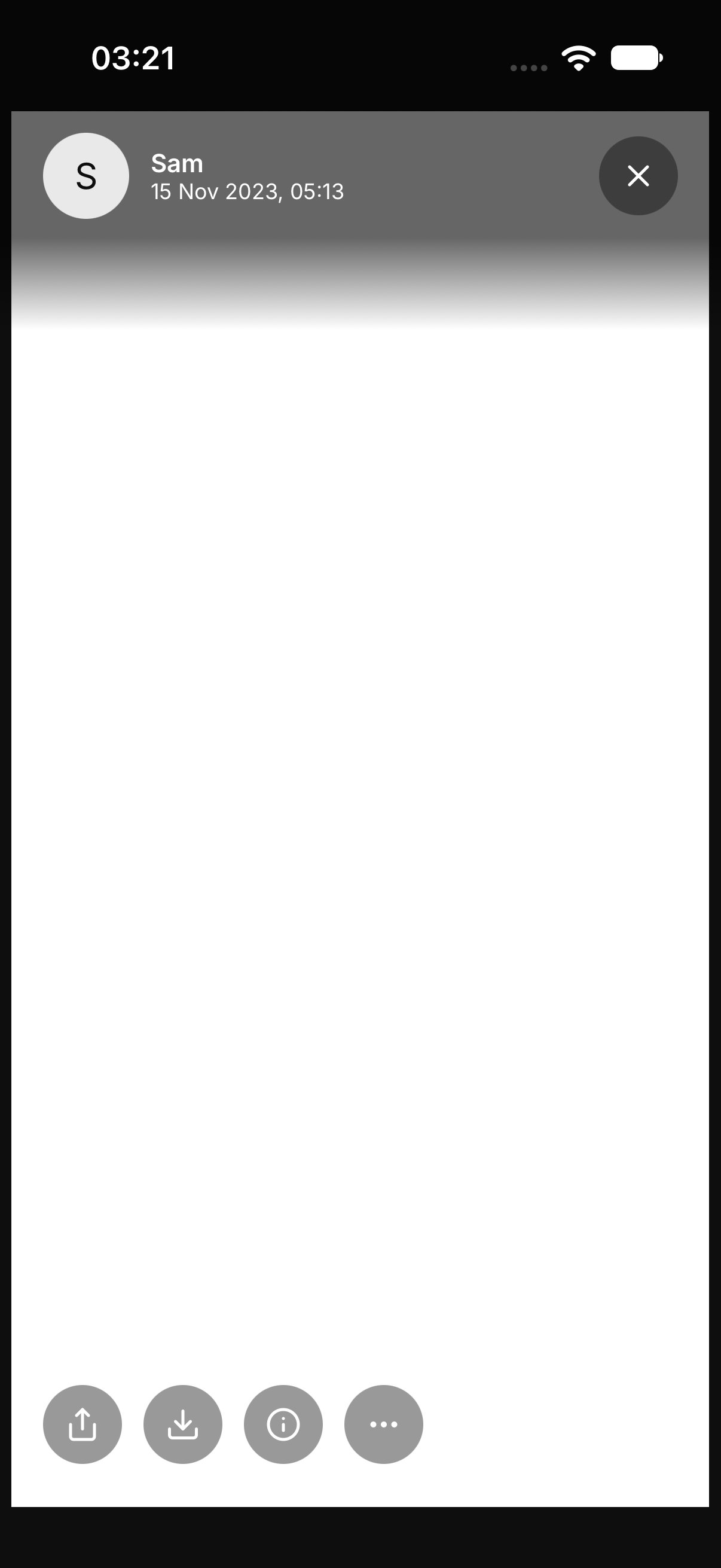
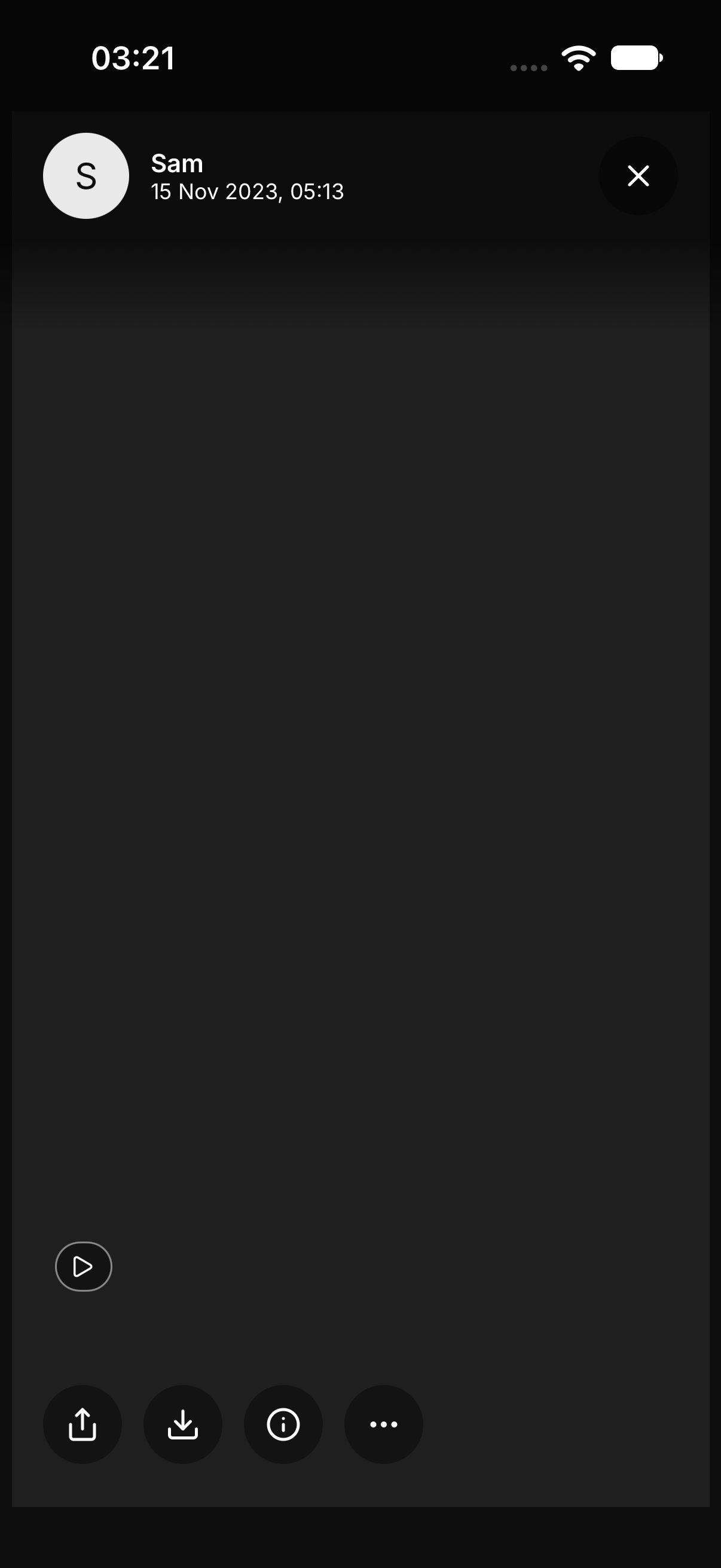
Tap a photo, a video, or a file in the Chest to open it. A video has a play control. A PDF opens as pages.
## How do I open a photo or video?
Tap the item in **All**, **Photos**, or **Videos**. Swipe to move to the next one.
 ## How do I read the details?
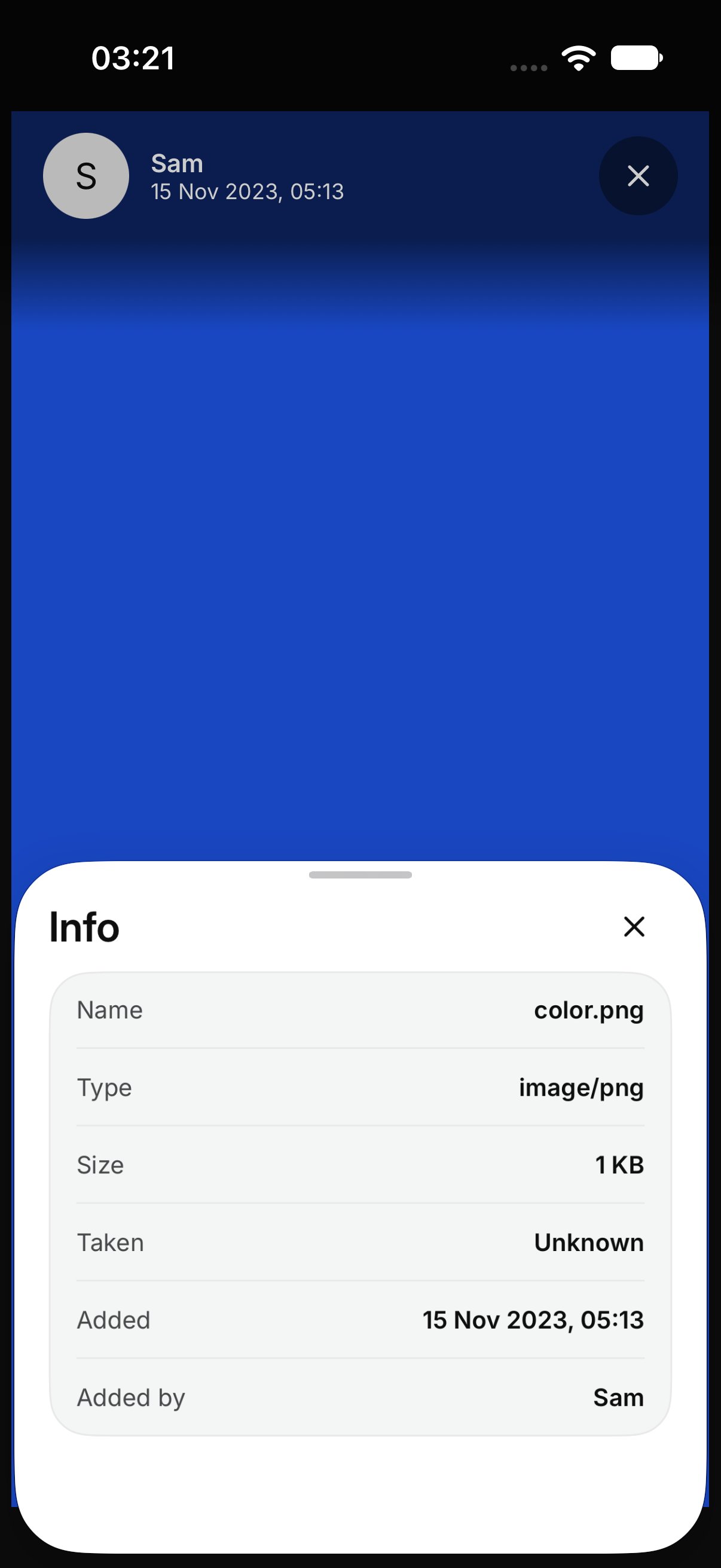
Tap **Info**. The sheet lists **Name**, **Type**, **Size**, **Taken**, **Added**, and **Added by**.
If OurChest does not know one of those, it shows **Unknown**.
## How do I read the details?
Tap **Info**. The sheet lists **Name**, **Type**, **Size**, **Taken**, **Added**, and **Added by**.
If OurChest does not know one of those, it shows **Unknown**.
 ## How do I save it to my phone?
On a photo or a video, tap **Save to device**. OurChest keeps that file on your phone. A PDF does not have **Save to device**. It opens as pages you can read.
If the original does not come down, the screen says **The original file did not download.** If it cannot be saved, the screen says **OurChest could not save this.** Try again when you are online.
## How do I share it?
Tap **Share** and pick where it should go. That sends the file. It does not invite the other person into the Chest. Inviting is a separate step. See [Invite people](../people/invite).
## How do I delete it?
Open the menu and tap **Delete**.
OurChest shows **Photo deleted**, **Video deleted**, or **File deleted**, with **Undo**. Tap **Undo** right away to put it back. OurChest then says **Restored**.
## How do I save it to my phone?
On a photo or a video, tap **Save to device**. OurChest keeps that file on your phone. A PDF does not have **Save to device**. It opens as pages you can read.
If the original does not come down, the screen says **The original file did not download.** If it cannot be saved, the screen says **OurChest could not save this.** Try again when you are online.
## How do I share it?
Tap **Share** and pick where it should go. That sends the file. It does not invite the other person into the Chest. Inviting is a separate step. See [Invite people](../people/invite).
## How do I delete it?
Open the menu and tap **Delete**.
OurChest shows **Photo deleted**, **Video deleted**, or **File deleted**, with **Undo**. Tap **Undo** right away to put it back. OurChest then says **Restored**.
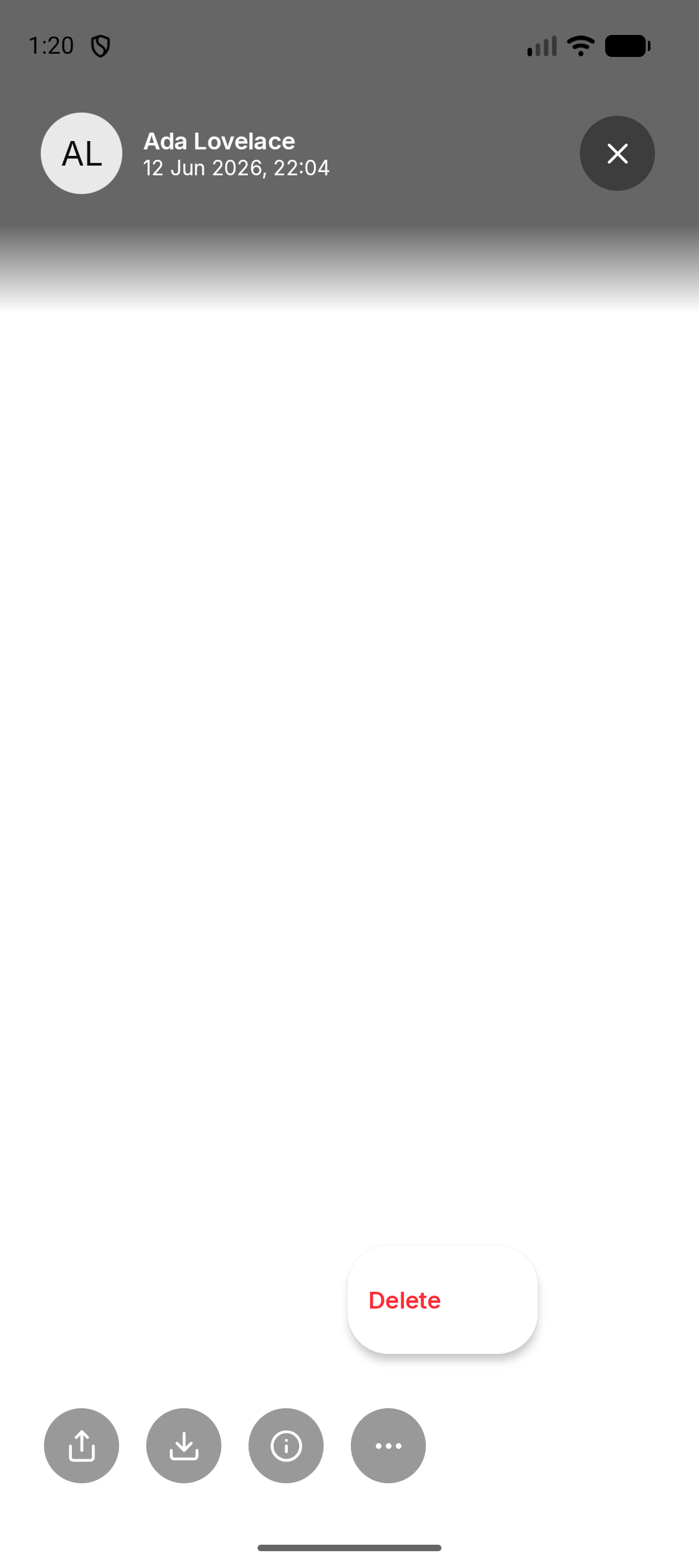 *Android. On iPhone, Delete is in the same viewer menu.*
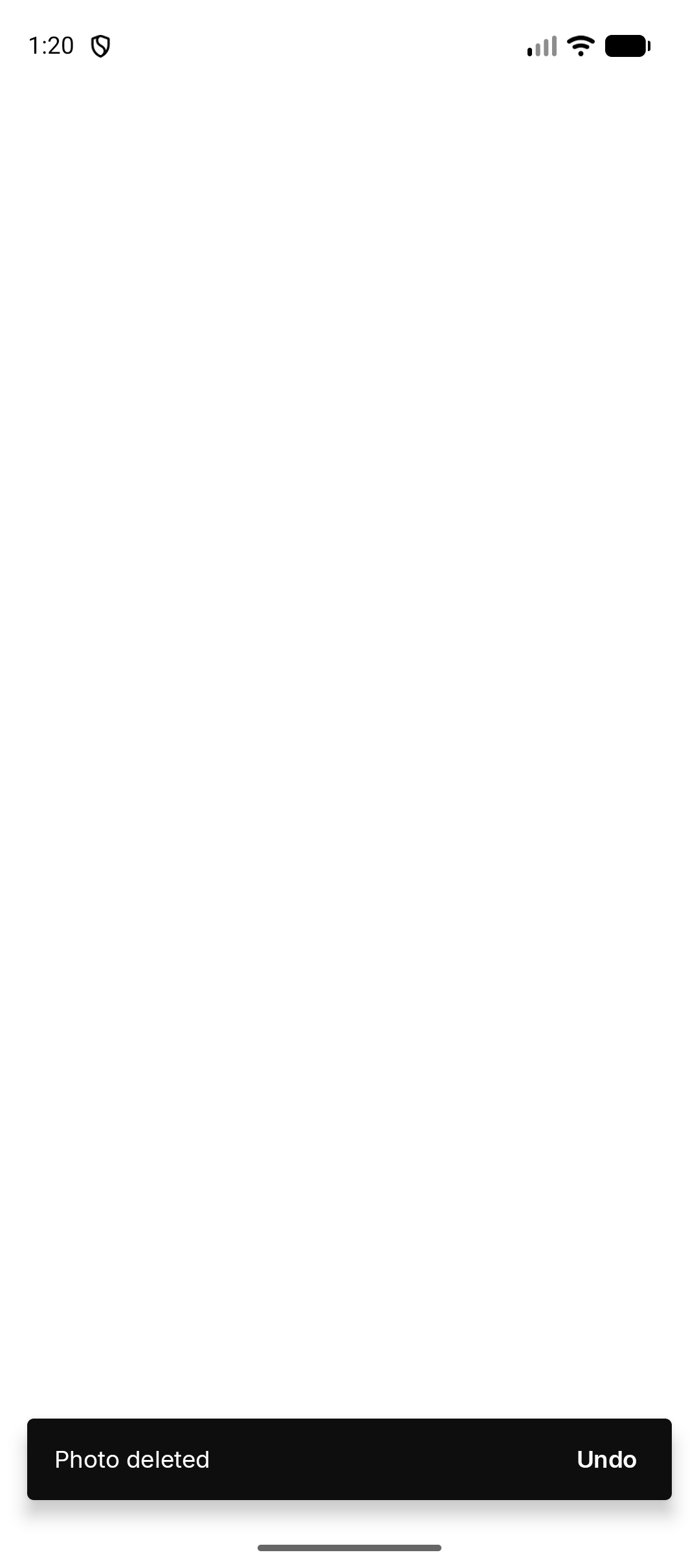 *Android. The iPhone shows the same message after a delete.*
**Undo** is the way back. After that message is gone, the item is no longer in the Chest.
## Who can delete?
The person who added the file can delete it. The owner of the Chest can delete it too. Another member cannot delete a file they did not add.
This documentation is built and hosted on [Mintlify](https://mintlify.com), a developer documentation platform.
*Android. The iPhone shows the same message after a delete.*
**Undo** is the way back. After that message is gone, the item is no longer in the Chest.
## Who can delete?
The person who added the file can delete it. The owner of the Chest can delete it too. Another member cannot delete a file they did not add.
This documentation is built and hosted on [Mintlify](https://mintlify.com), a developer documentation platform.