> ## Documentation Index
> Fetch the complete documentation index at: https://docs.getourchest.com/llms.txt
> Use this file to discover all available pages before exploring further.
# Connect Google Drive, Dropbox, or OneDrive
> Link Google Drive, Dropbox, or OneDrive to your OurChest account
Connecting a service does not by itself save a Chest. It lets you turn that service on later, for the Chests you choose. The three services use the same sheet. These steps use Google Drive. Dropbox and OneDrive are the same steps with their own names.
## Where do I connect a service?
Open **Settings** and find **Connected storage**.
Each row is **Google Drive**, **Dropbox**, or **OneDrive**. The status is **Not connected**, **Connected**, or **Reconnect needed**.
On iPhone the rows sit inside **Settings**. On Android they can also open as their own **Connected storage** list. The rows are the same.
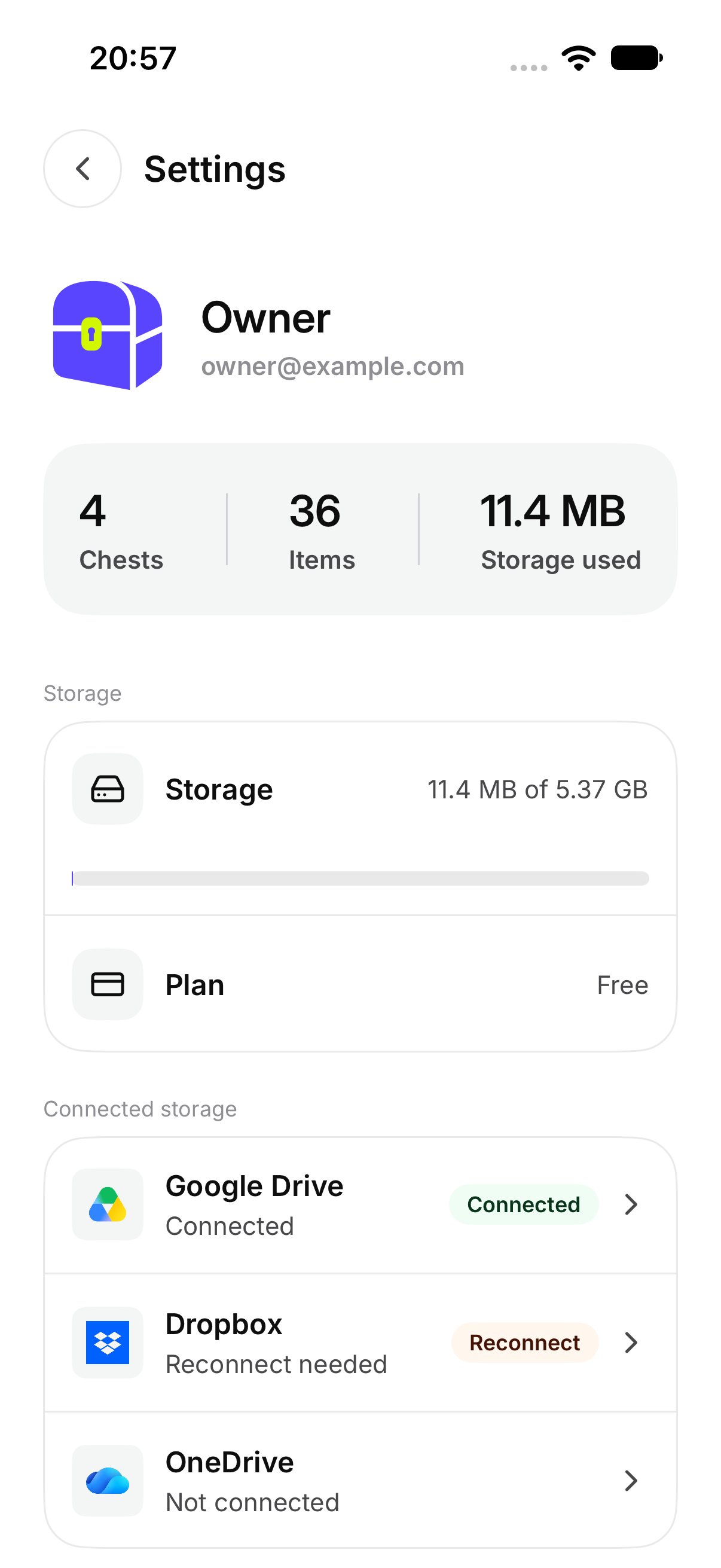
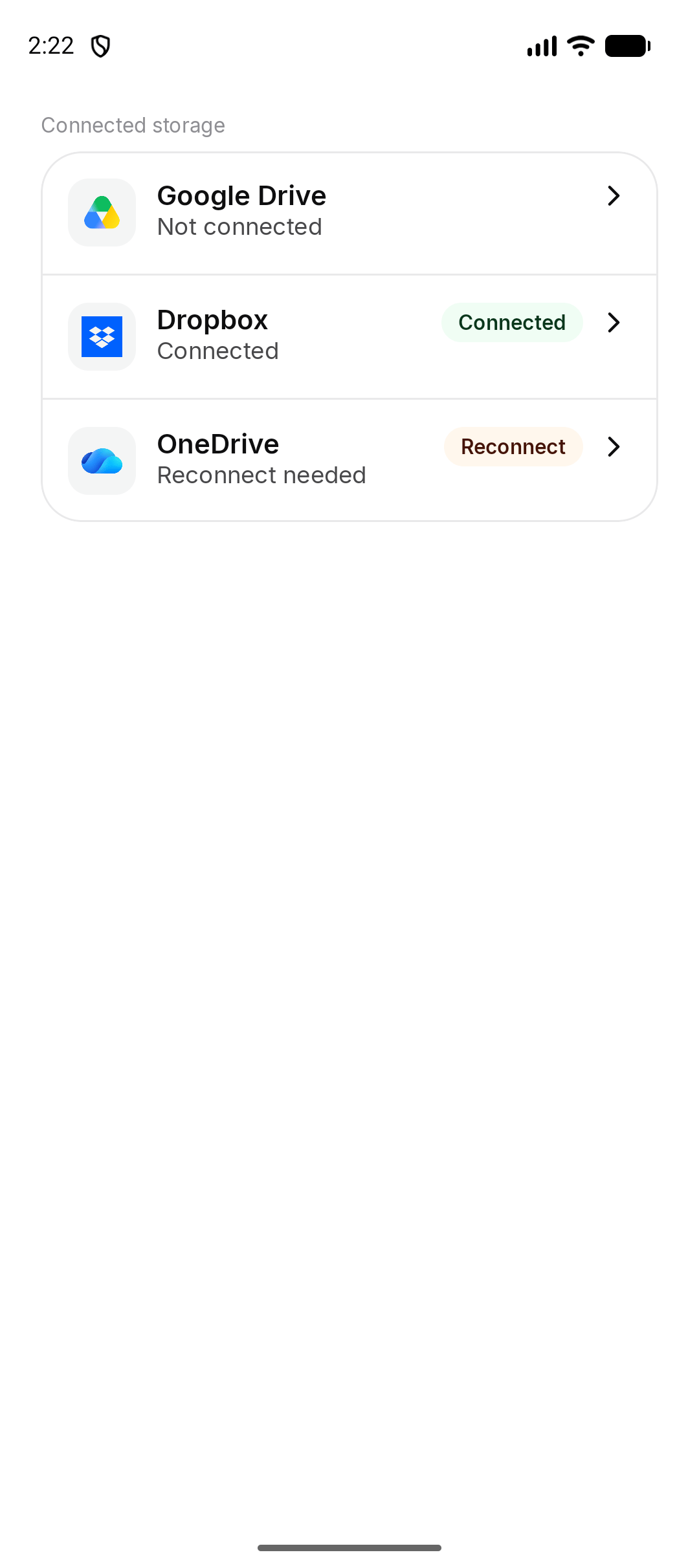 *Android. The iPhone list is the one inside Settings, above.*
## How do I connect Google Drive?
1. Tap **Google Drive** while it says **Not connected**.
2. Read the sheet. It says **A Chest works without another service. Connecting one also saves files there.**
3. Tap **Connect Google Drive**.
4. Sign in on the page that opens, and allow access.
When it works, the row says **Connected**. OurChest shows **Google Drive connected.** Dropbox and OneDrive use their own names in that message.
## What about Dropbox and OneDrive?
Tap the row and then **Connect Dropbox** or **Connect OneDrive**. Sign in the same way. You can connect more than one service. Each one is turned on for a Chest separately. See [Save a Chest there](./for-a-chest).
## What if the sign-in page does not open?
The sheet says **That sign-in page could not be opened.** Close it and try **Connect** again.
If the sheet says **Waiting to finish sign-in**, tap **Finish sign-in** and complete the page that is still open.
## What if access is denied?
If you refuse access, the sheet says **Google Drive did not give OurChest access.** and **Nothing was connected.** Dropbox and OneDrive use their own names. Tap **Connect again** if you want to allow it.
Other messages on the same sheet:
* **That sign-in has expired.** Tap **Sign in again**.
* **You are offline. Check the connection and try again.**
* **We could not reach Google Drive. Try again in a moment.** The name matches the service you tapped.
Nothing is connected until the row says **Connected**.
This documentation is built and hosted on [Mintlify](https://mintlify.com), a developer documentation platform.
*Android. The iPhone list is the one inside Settings, above.*
## How do I connect Google Drive?
1. Tap **Google Drive** while it says **Not connected**.
2. Read the sheet. It says **A Chest works without another service. Connecting one also saves files there.**
3. Tap **Connect Google Drive**.
4. Sign in on the page that opens, and allow access.
When it works, the row says **Connected**. OurChest shows **Google Drive connected.** Dropbox and OneDrive use their own names in that message.
## What about Dropbox and OneDrive?
Tap the row and then **Connect Dropbox** or **Connect OneDrive**. Sign in the same way. You can connect more than one service. Each one is turned on for a Chest separately. See [Save a Chest there](./for-a-chest).
## What if the sign-in page does not open?
The sheet says **That sign-in page could not be opened.** Close it and try **Connect** again.
If the sheet says **Waiting to finish sign-in**, tap **Finish sign-in** and complete the page that is still open.
## What if access is denied?
If you refuse access, the sheet says **Google Drive did not give OurChest access.** and **Nothing was connected.** Dropbox and OneDrive use their own names. Tap **Connect again** if you want to allow it.
Other messages on the same sheet:
* **That sign-in has expired.** Tap **Sign in again**.
* **You are offline. Check the connection and try again.**
* **We could not reach Google Drive. Try again in a moment.** The name matches the service you tapped.
Nothing is connected until the row says **Connected**.
This documentation is built and hosted on [Mintlify](https://mintlify.com), a developer documentation platform.