> ## Documentation Index
> Fetch the complete documentation index at: https://docs.getourchest.com/llms.txt
> Use this file to discover all available pages before exploring further.
# Sign in
> Come back with the email code OurChest sends you
Signing in uses the email on your account. OurChest sends a fresh 6-digit code. There is no password.
## How do I sign in?
1. On the welcome screen, tap **I already have an account**.
2. On **Welcome back**, enter your **Email**. The screen says **Sign in with your email. We send you a 6-digit code.**
3. Tap **Continue**.
Under the field, OurChest also says **We email you a 6-digit code. There is no password.**
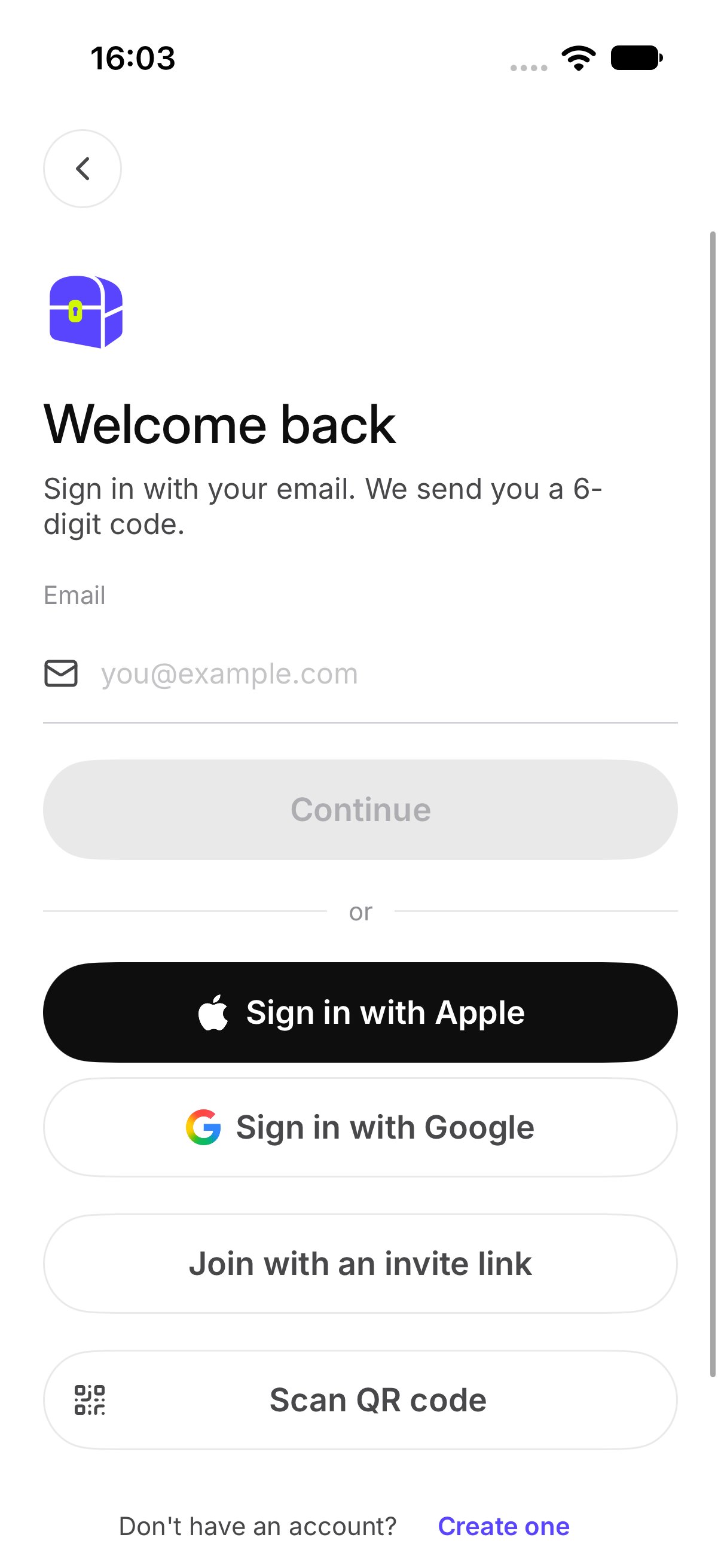 **Sign in with Apple** and **Sign in with Google** are on this screen. They do not sign you in yet.
## How do I enter the code?
**Check your email** shows **Enter the 6-digit code we sent to** your address. Type the code from the email.
Tap **Send a new code** if you need another one. OurChest shows **New code sent**.
**Sign in with Apple** and **Sign in with Google** are on this screen. They do not sign you in yet.
## How do I enter the code?
**Check your email** shows **Enter the 6-digit code we sent to** your address. Type the code from the email.
Tap **Send a new code** if you need another one. OurChest shows **New code sent**.
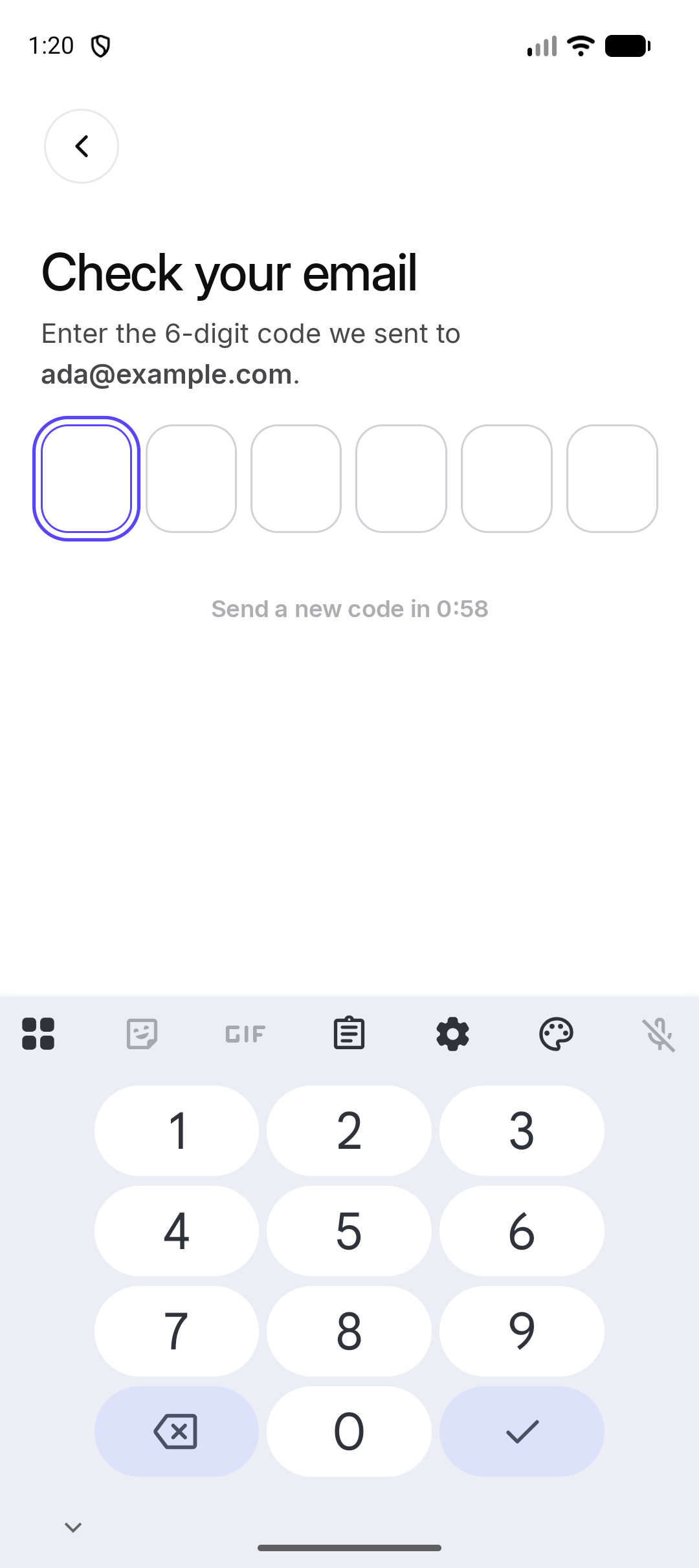 *Android. The iPhone screen uses the same code boxes.*
## What if the code does not work?
OurChest says **That code did not work. Check it or send a new one.**
Look at the email again, or tap **Send a new code**. Use the newest code. An older one will not work.
## Can I join without an account?
Yes. On the sign-in screen, tap **Join with an invite link** or **Scan QR code**. You join that Chest with your name. You can [add an email later](../account/guest) if you want the Chest on another phone.
Those two buttons are also in the **+** menu on the Chests screen. [Join a Chest](../people/join) and [Scan a QR code](../people/scan-a-qr-code) explain each one.
This documentation is built and hosted on [Mintlify](https://mintlify.com), a developer documentation platform.
*Android. The iPhone screen uses the same code boxes.*
## What if the code does not work?
OurChest says **That code did not work. Check it or send a new one.**
Look at the email again, or tap **Send a new code**. Use the newest code. An older one will not work.
## Can I join without an account?
Yes. On the sign-in screen, tap **Join with an invite link** or **Scan QR code**. You join that Chest with your name. You can [add an email later](../account/guest) if you want the Chest on another phone.
Those two buttons are also in the **+** menu on the Chests screen. [Join a Chest](../people/join) and [Scan a QR code](../people/scan-a-qr-code) explain each one.
This documentation is built and hosted on [Mintlify](https://mintlify.com), a developer documentation platform.