> ## Documentation Index
> Fetch the complete documentation index at: https://docs.getourchest.com/llms.txt
> Use this file to discover all available pages before exploring further.
# Scan a QR code
> Join a Chest by scanning the code the owner is showing
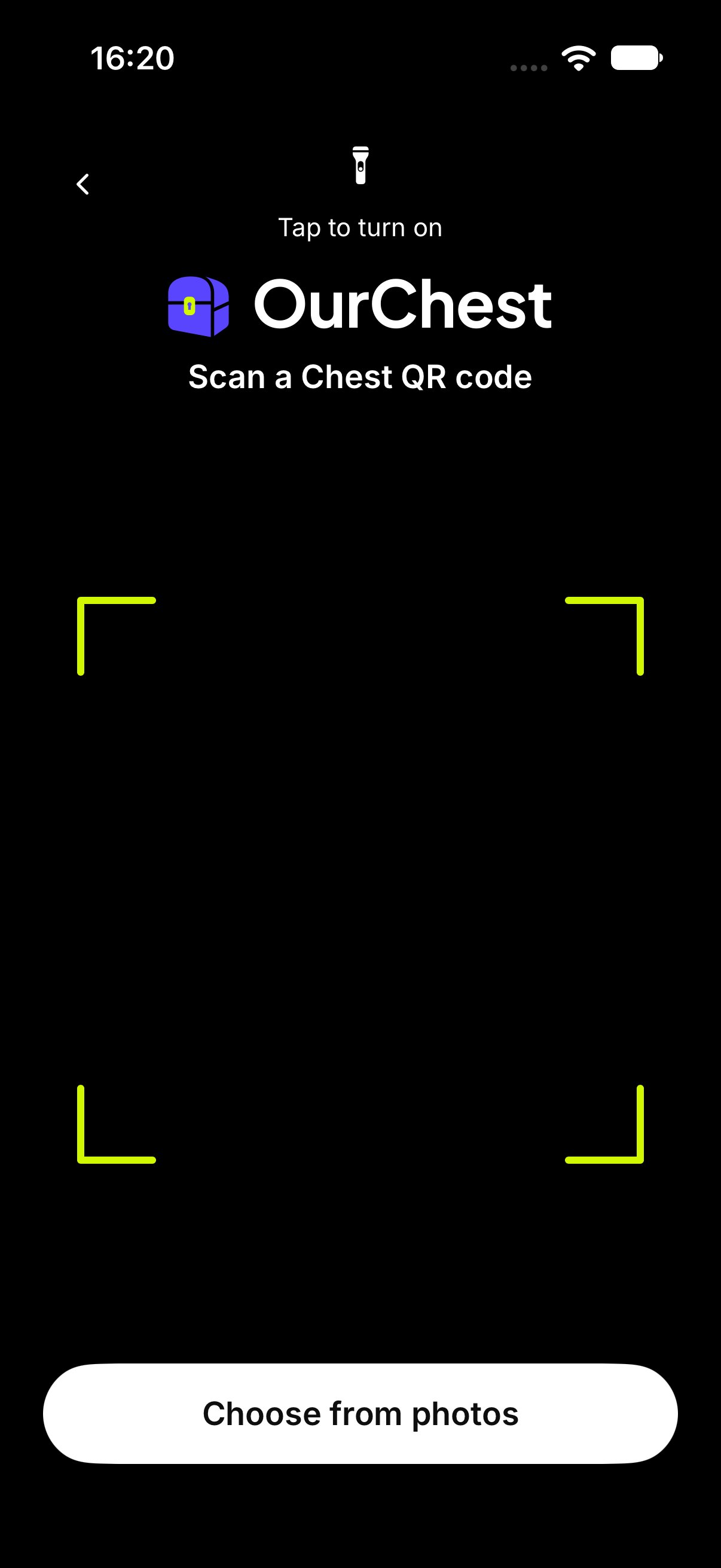
The owner shows a code from [Invite people](./invite). You scan it in OurChest. The scanner stays dark even when the rest of the app is light.
After a valid code, you land on the same join screen as a pasted link. [Join a Chest](./join) covers the name, approval, and an **Event PIN**.
## How do I scan a code?
1. Tap **Scan QR code**. You can start from the sign-in screen or from the **+** menu on **Chests**.
2. Point the camera at the code. The title is **Scan a Chest QR code**.
3. When the code is read, OurChest opens the join screen.
**Torch** turns the light on if you need it. **On** and **Off** show the current state.
 ## How do I use a photo of the code?
Tap **Choose from photos** and pick a picture of the code.
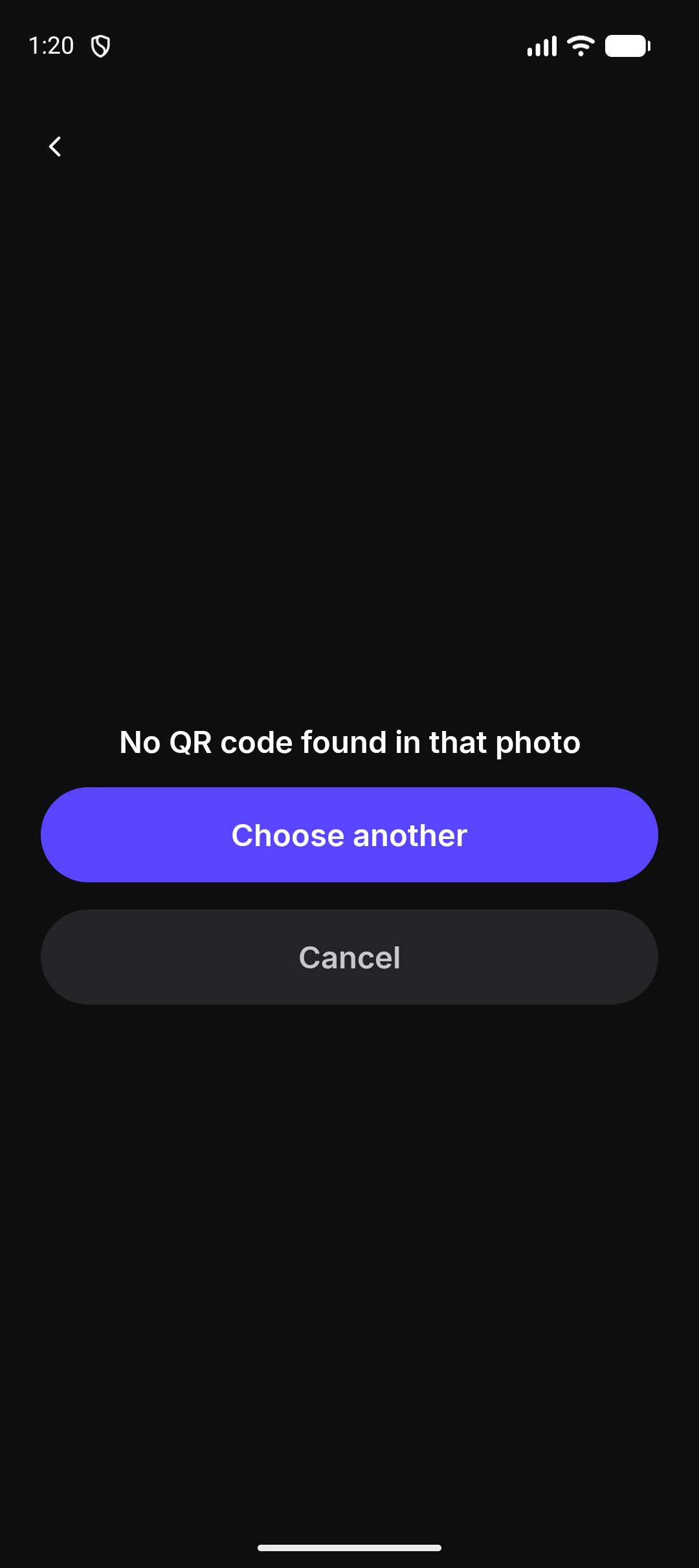
If that picture has no code, OurChest says **No QR code found in that photo**. Tap **Choose another**, or scan with the camera.
## How do I use a photo of the code?
Tap **Choose from photos** and pick a picture of the code.
If that picture has no code, OurChest says **No QR code found in that photo**. Tap **Choose another**, or scan with the camera.
 *Android. On iPhone, Choose from photos is on the same scanner.*
## What if the camera is off?
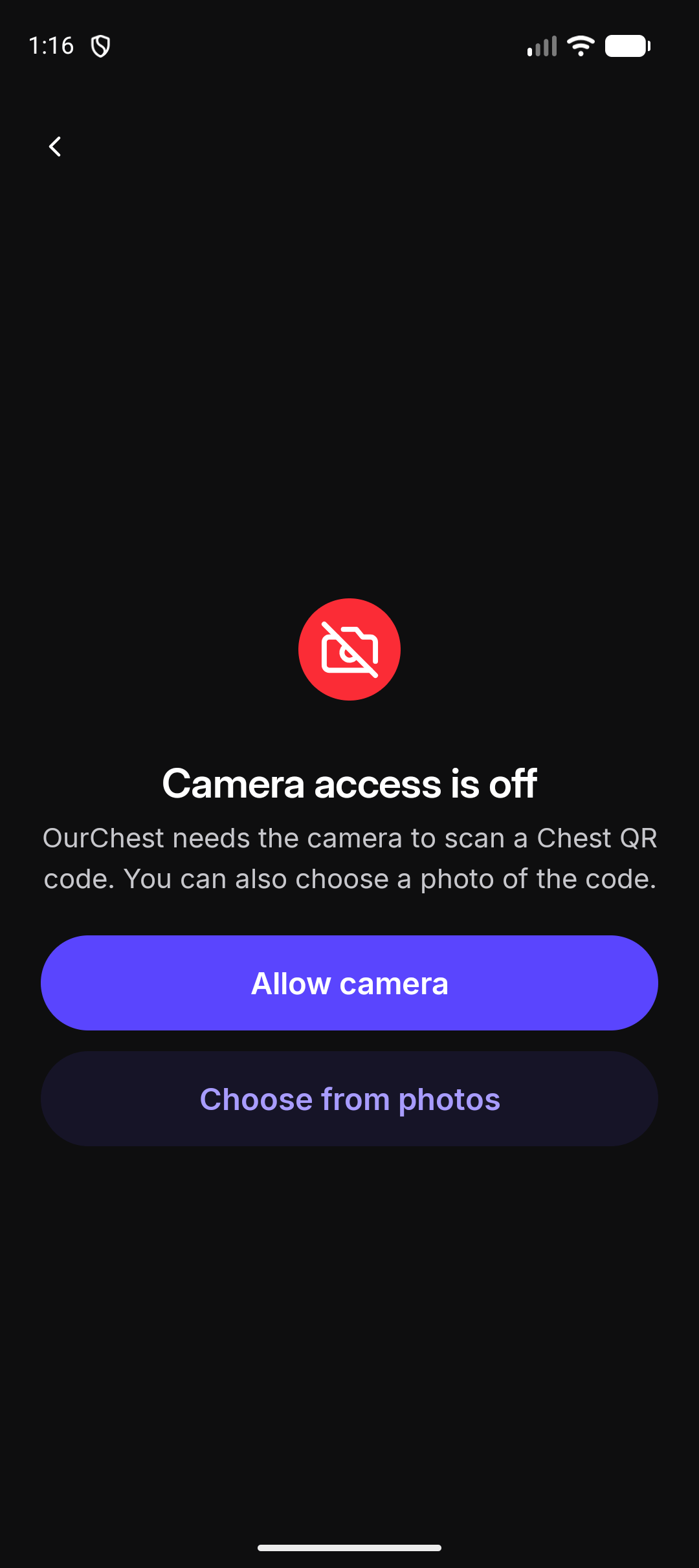
OurChest says **Camera access is off** and **OurChest needs the camera to scan a Chest QR code. You can also choose a photo of the code.**
Tap **Allow camera** to ask again. If the phone will not ask again, tap **Open Settings** and allow the camera for OurChest.
*Android. On iPhone, Choose from photos is on the same scanner.*
## What if the camera is off?
OurChest says **Camera access is off** and **OurChest needs the camera to scan a Chest QR code. You can also choose a photo of the code.**
Tap **Allow camera** to ask again. If the phone will not ask again, tap **Open Settings** and allow the camera for OurChest.
 *Android.*
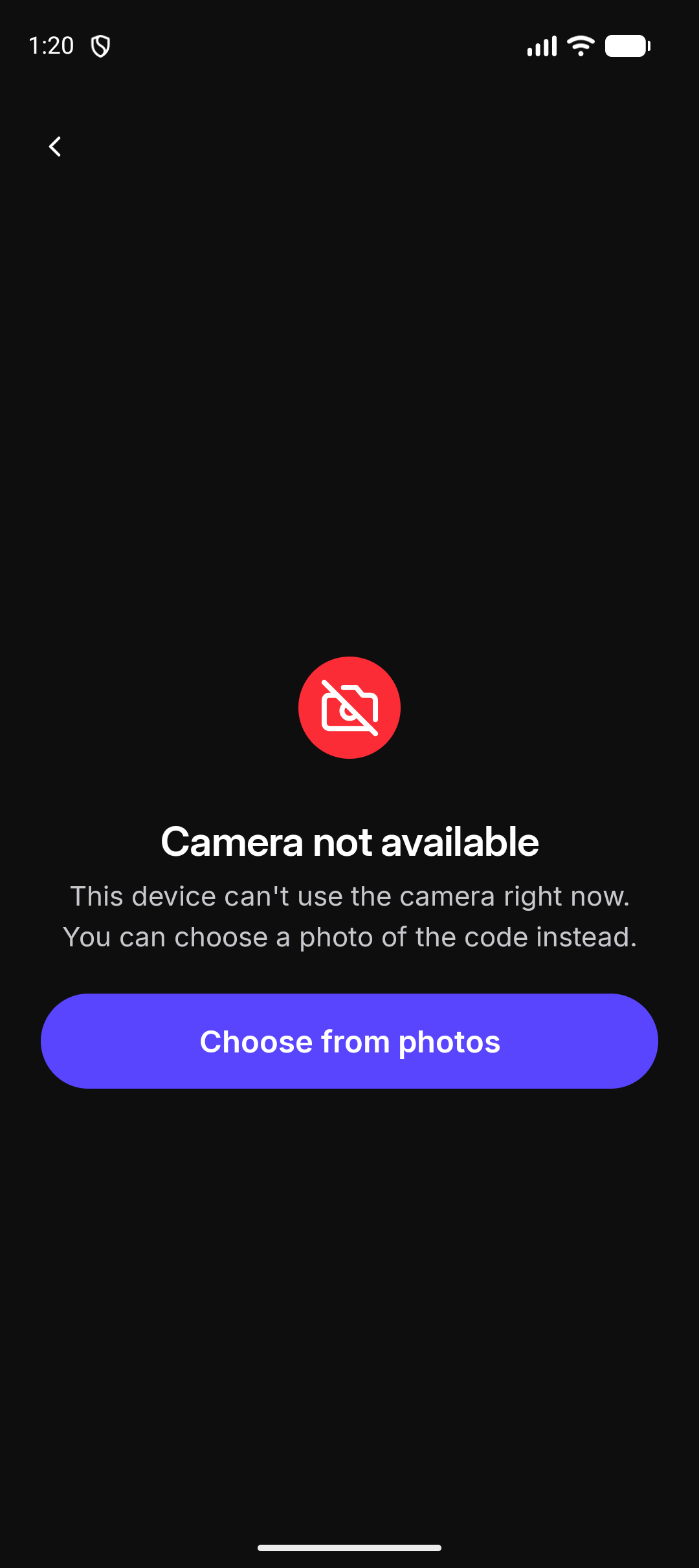
If this device cannot use the camera, the screen says **Camera not available** and **This device can't use the camera right now. You can choose a photo of the code instead.**
*Android.*
If this device cannot use the camera, the screen says **Camera not available** and **This device can't use the camera right now. You can choose a photo of the code instead.**
 *Android.*
## What if this is not an OurChest code?
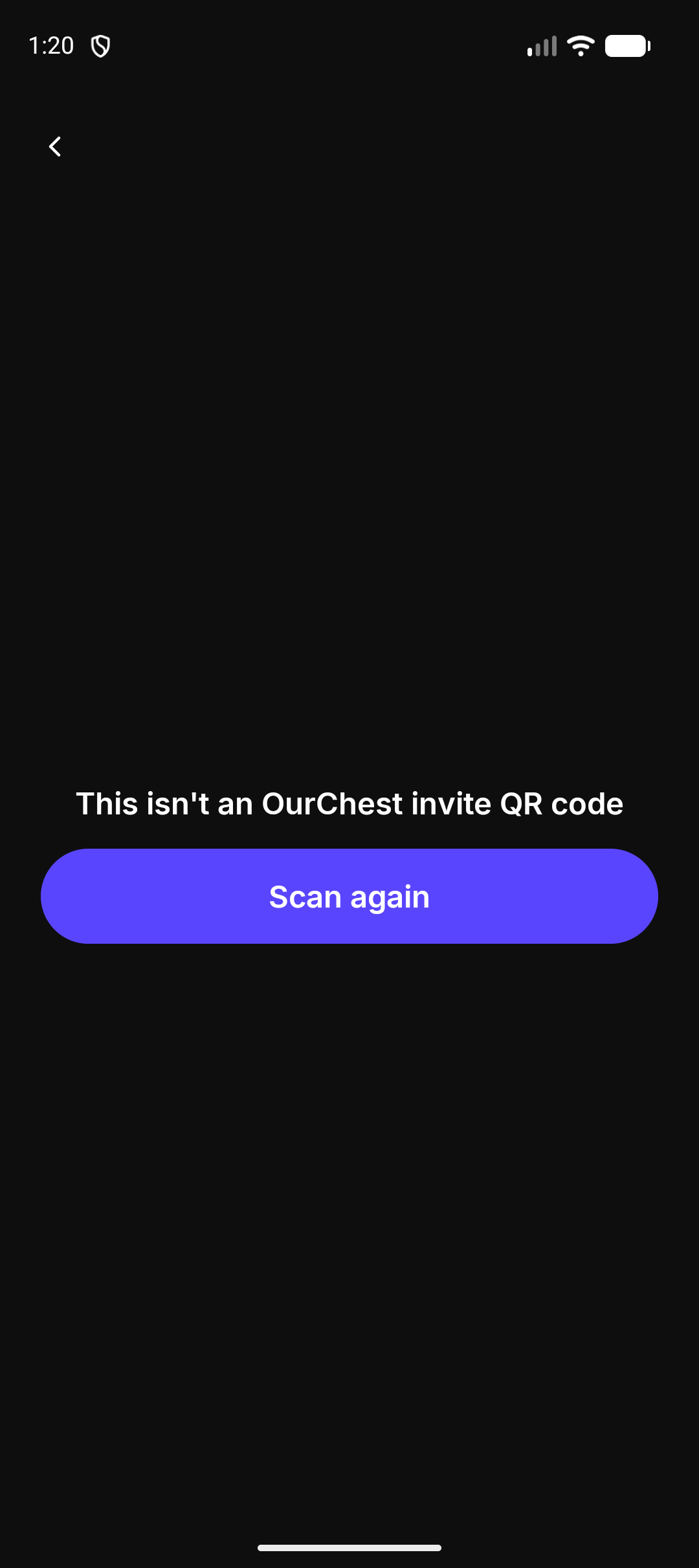
OurChest says **This isn't an OurChest invite QR code**. Tap **Scan again**.
A code from another app will not join a Chest.
*Android.*
## What if this is not an OurChest code?
OurChest says **This isn't an OurChest invite QR code**. Tap **Scan again**.
A code from another app will not join a Chest.
 *Android.*
This documentation is built and hosted on [Mintlify](https://mintlify.com), a developer documentation platform.
*Android.*
This documentation is built and hosted on [Mintlify](https://mintlify.com), a developer documentation platform.