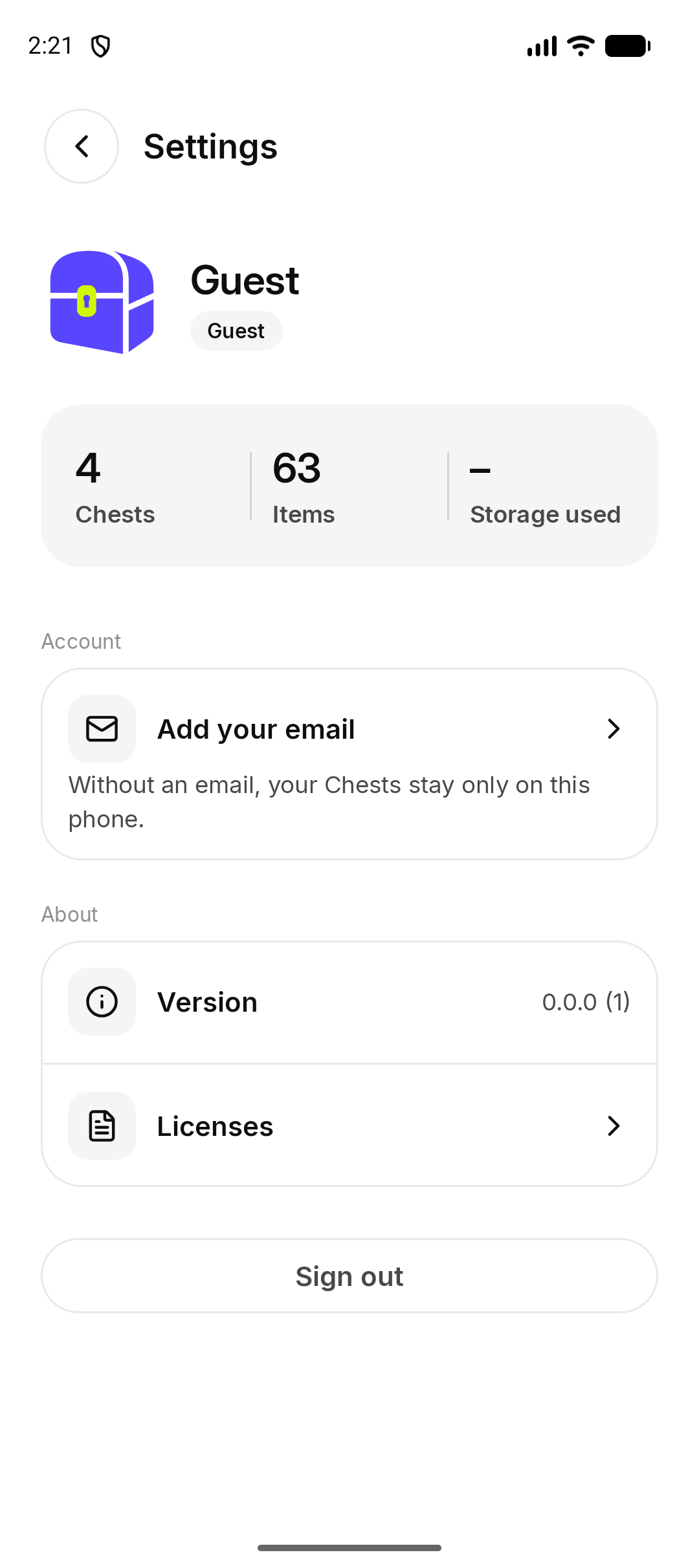
A guest joins with a name. There is no password. The Chests stay on that phone until an email is added.

What is a guest?

You are a guest if you joined from an invite and have not added an email. Settings shows Guest. The screen says Without an email, your Chests stay only on this phone. A guest can open those Chests, add photos, and leave a Chest. A guest cannot create a Chest. The home screen says Open an invite link to join a Chest. See Join a Chest. Guest settings, with Add your email Android. On iPhone, the same screen shows Guest and Add your email.
How do I add my email?

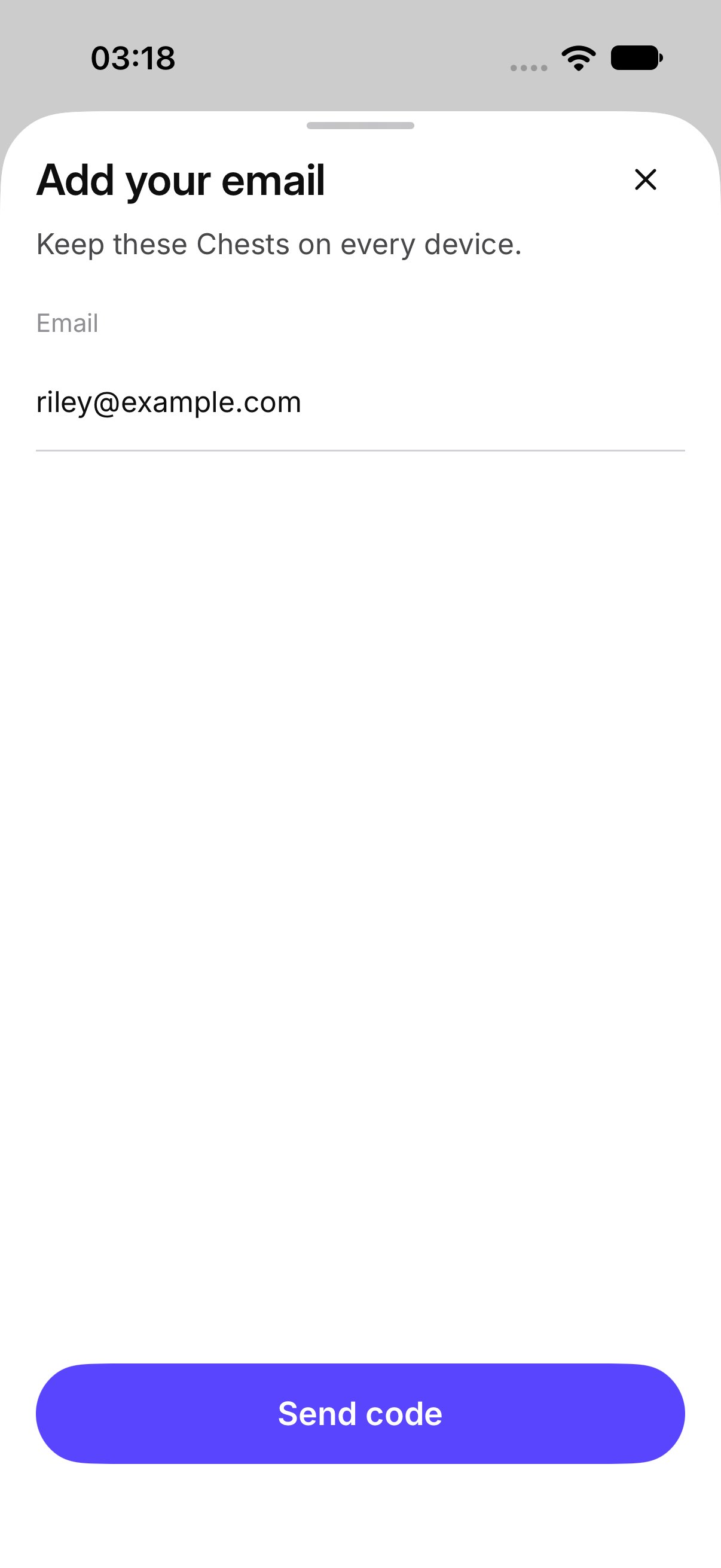
  1. Open Settings and tap Add your email.
  2. The sheet says Keep these Chests on every device. Enter the email and tap Send code.
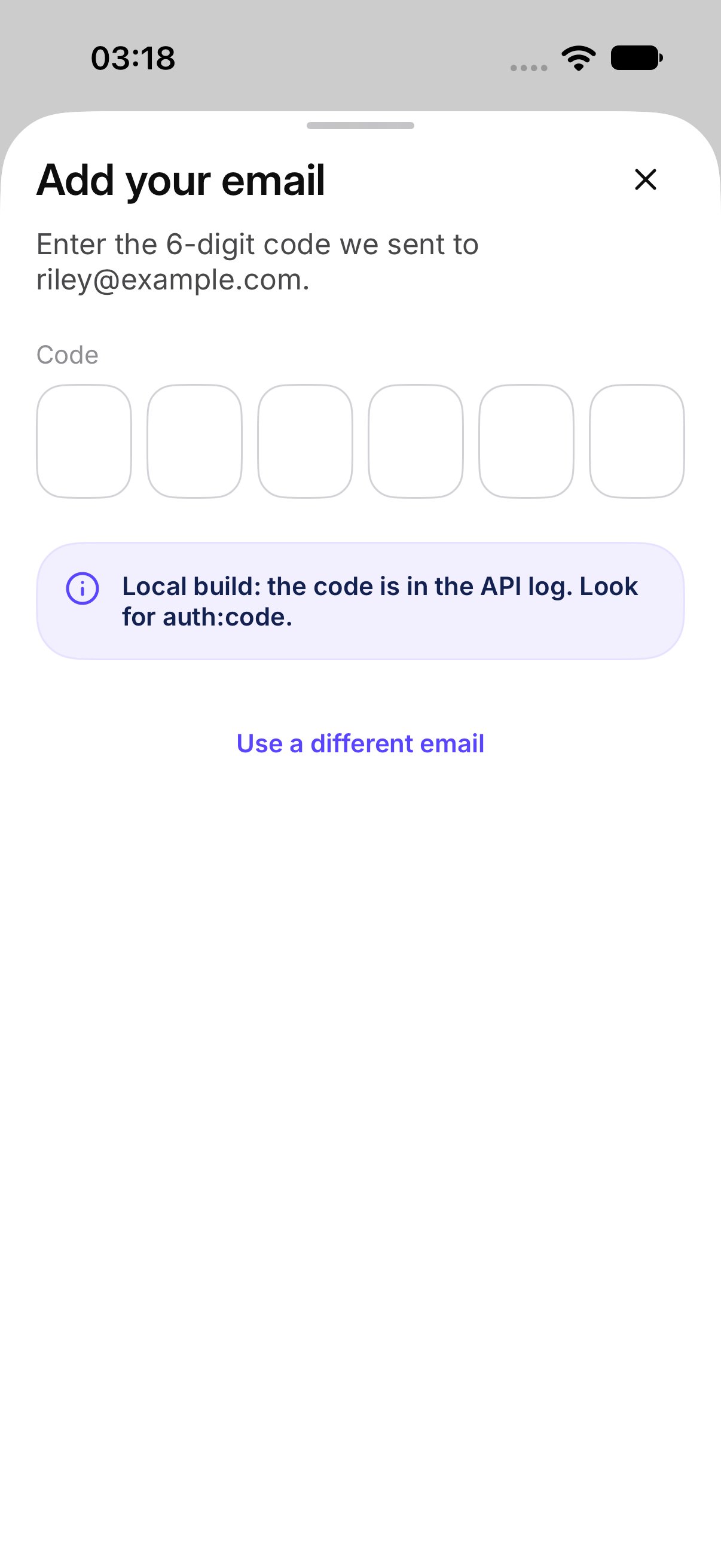
  3. On Check your email, enter the 6-digit code.
When the code is right, those Chests stay with you. Your name in the Chest does not change. This is the same account, not a second one. Tap Use a different email if you want to send the code somewhere else. Add your email The code for that email

What if I lose this phone before I add an email?

Ask the owner for a new invite. The Chest and its files stay. The new invite is a new guest until an email is added. The old phone’s guest access does not move by itself.

What if that email is already in use?

OurChest says That email already has an OurChest account. Sign in with it instead; your guest Chests stay on this phone until you sign out. The email is not moved onto this guest. Sign in to that account if it is yours, or tap Use a different email.