What is on Settings?
Account shows your name and email. Under that, This device is the phone you are holding, and Member since is when the account started. Storage and Plan are summarized here. The detail is in Storage and your plan. Connected storage is the list of Google Drive, Dropbox, and OneDrive. See Connect Google Drive, Dropbox, or OneDrive. Further down, Signed-in devices lists the phones that can open this account.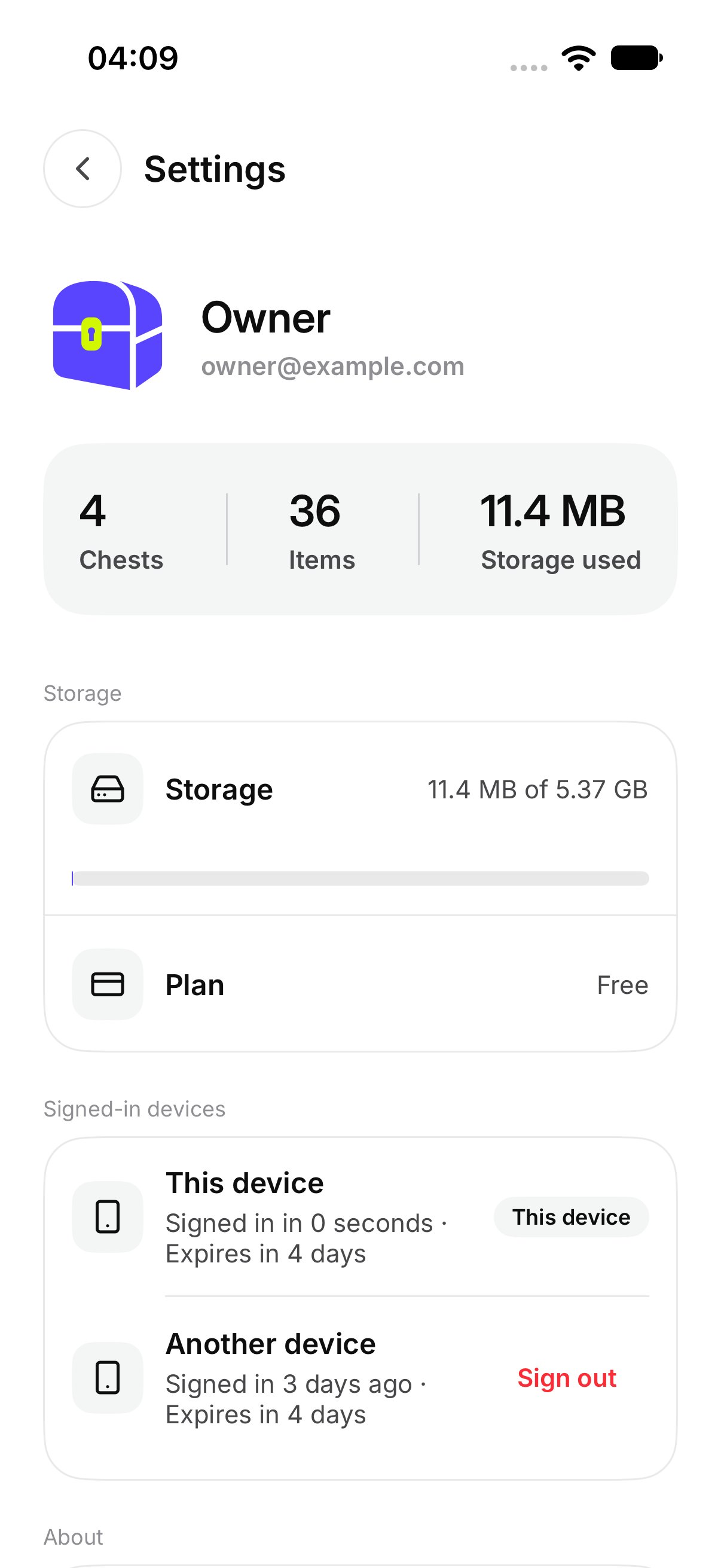
How do I sign out one device?
Under Signed-in devices, open the device and tap Sign out. OurChest asks Sign out this device? Confirm it. The screen says Signing out a device removes its access right away. After it finishes, you see Signed out that device. The phone you are holding is marked This device. Signing that one out is the same as signing out of this phone.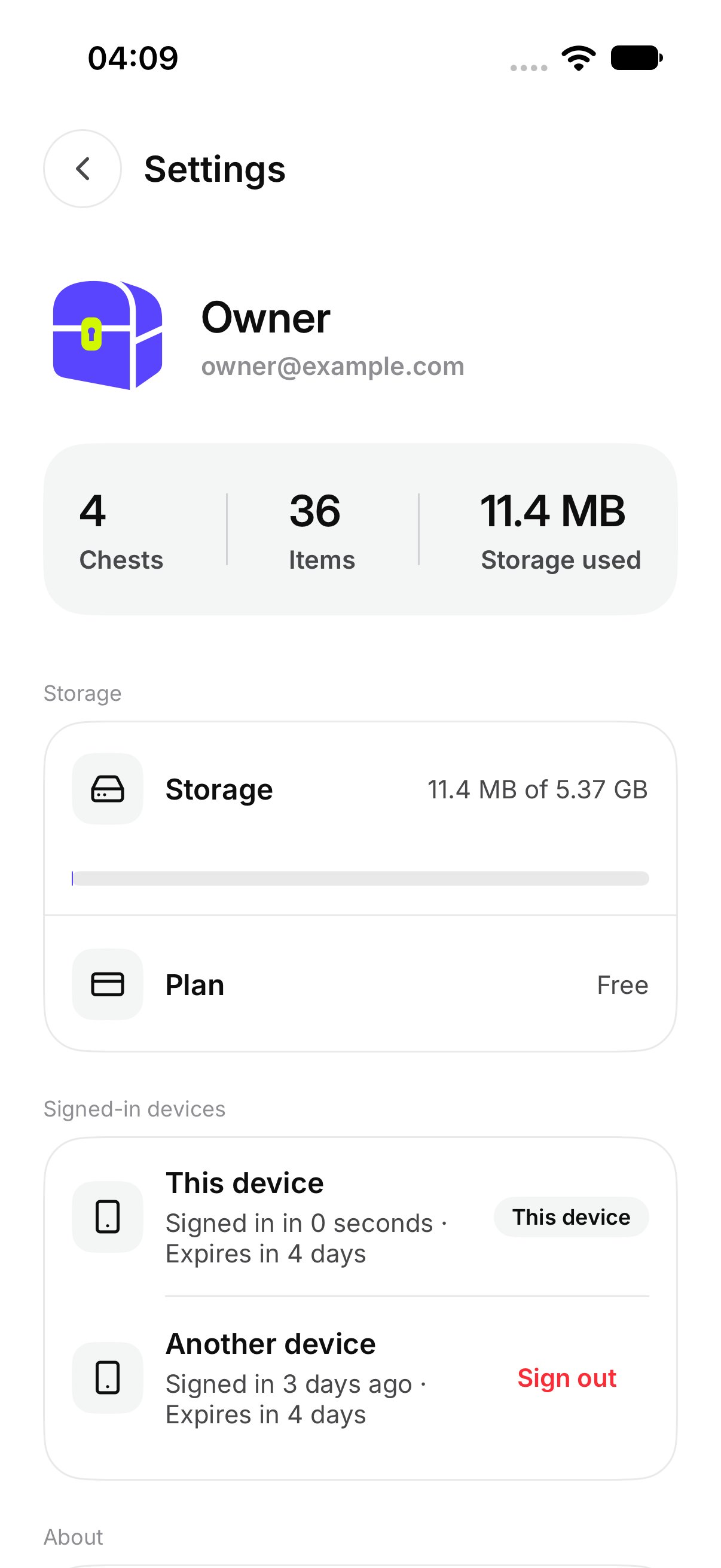
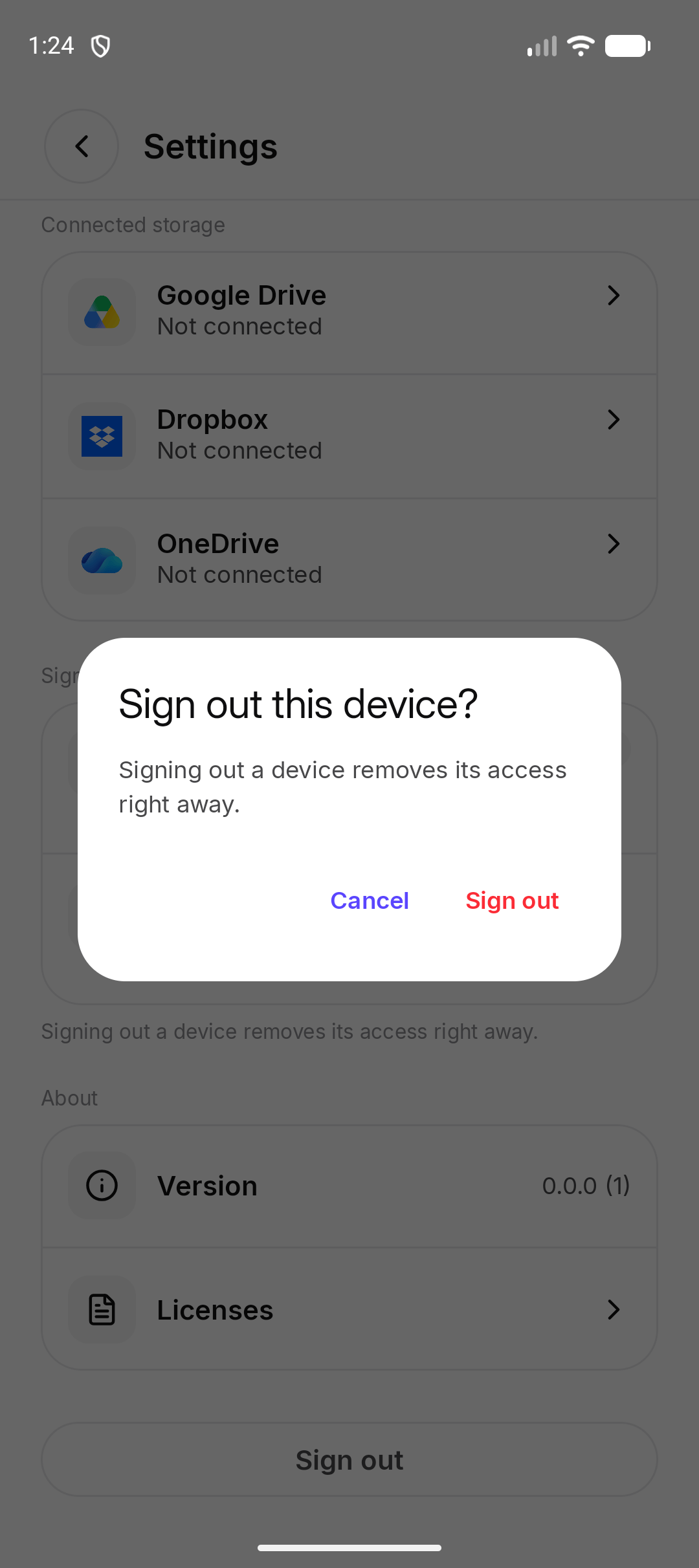
How do I sign out this phone?
At the bottom of Settings, tap Sign out. OurChest asks Sign out of OurChest on this phone? and says You can sign in again with your email. Confirm to leave. Your Chests stay on the account. Sign in brings them back on this phone. A guest sees Sign out of guest access? instead. The screen says You will lose access to these Chests on this phone unless you add your email first. Add your email before you sign out if you want to keep them.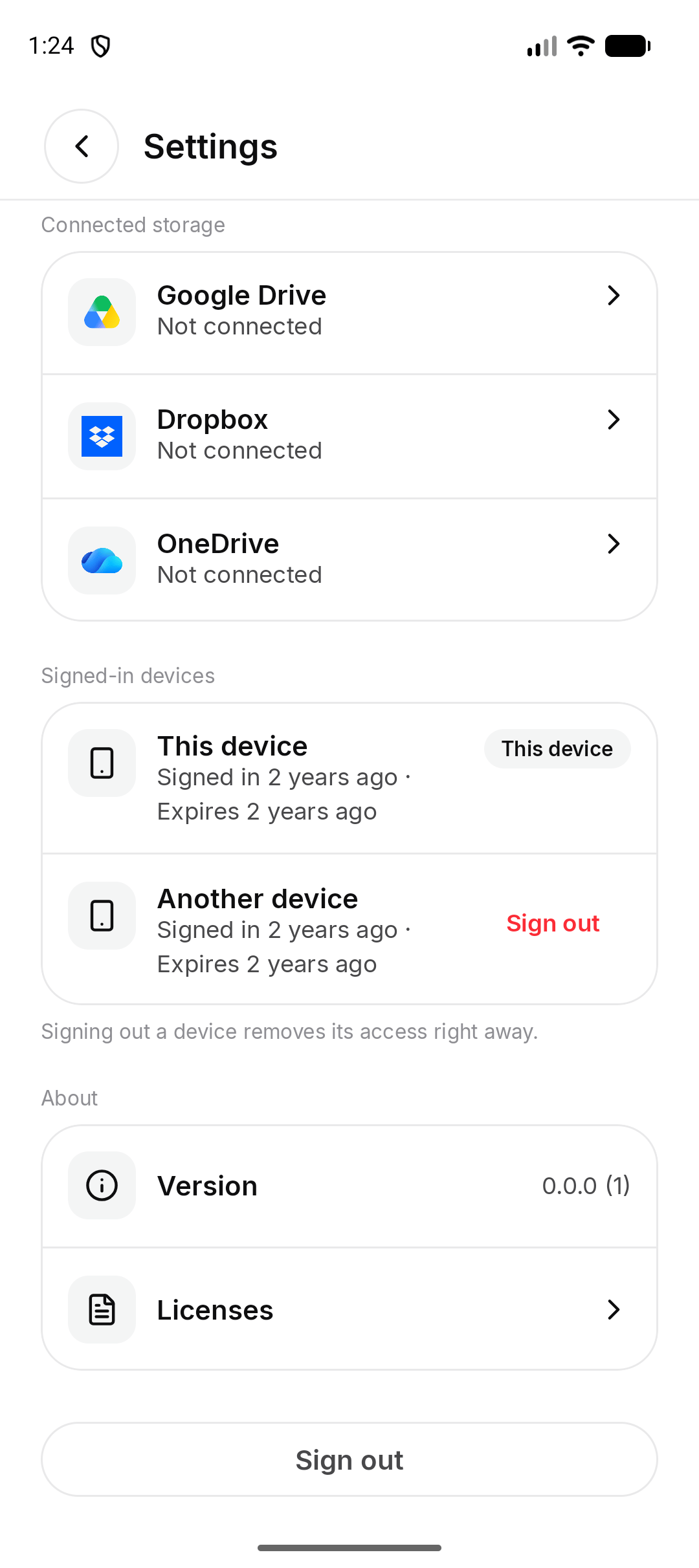
Where are the licenses?
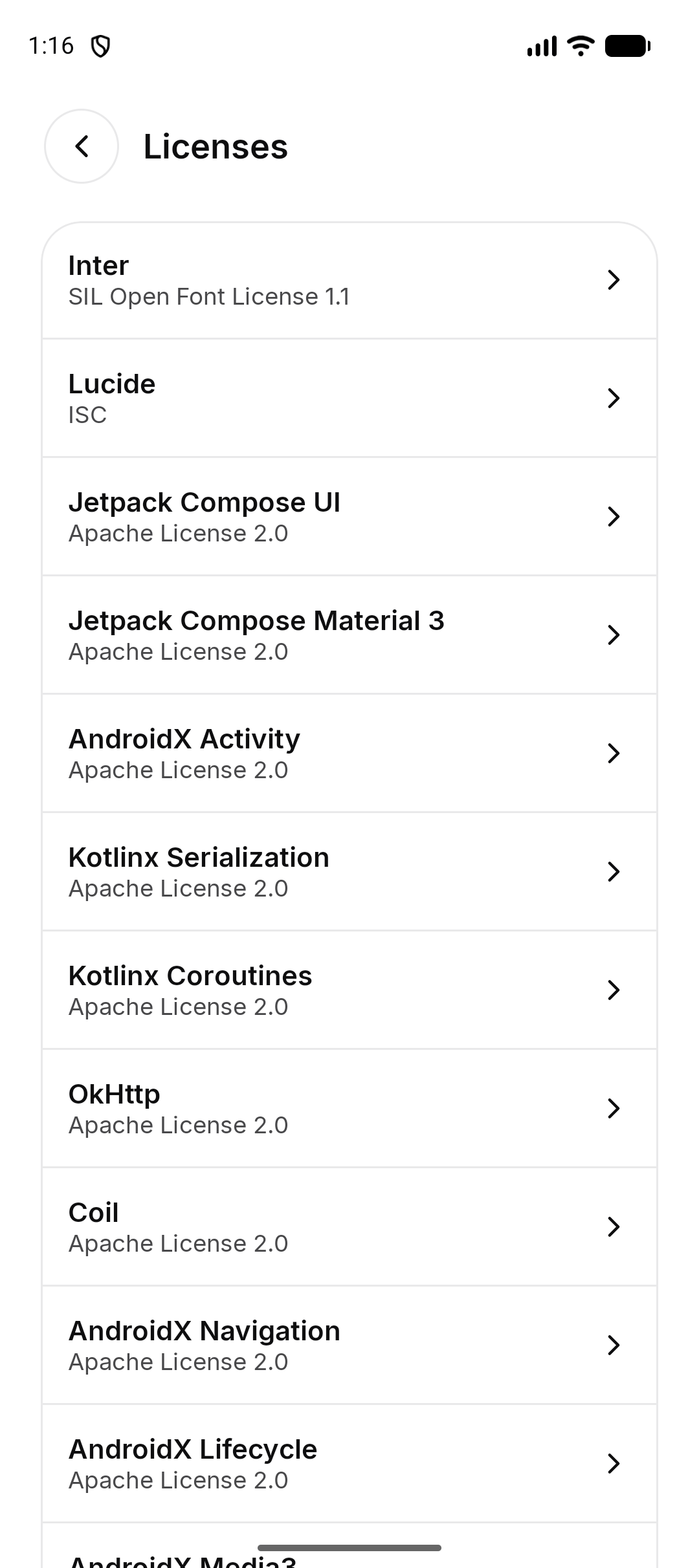
On Android, About shows Version and Licenses. Tap Licenses to read them. On iPhone, About shows Version.