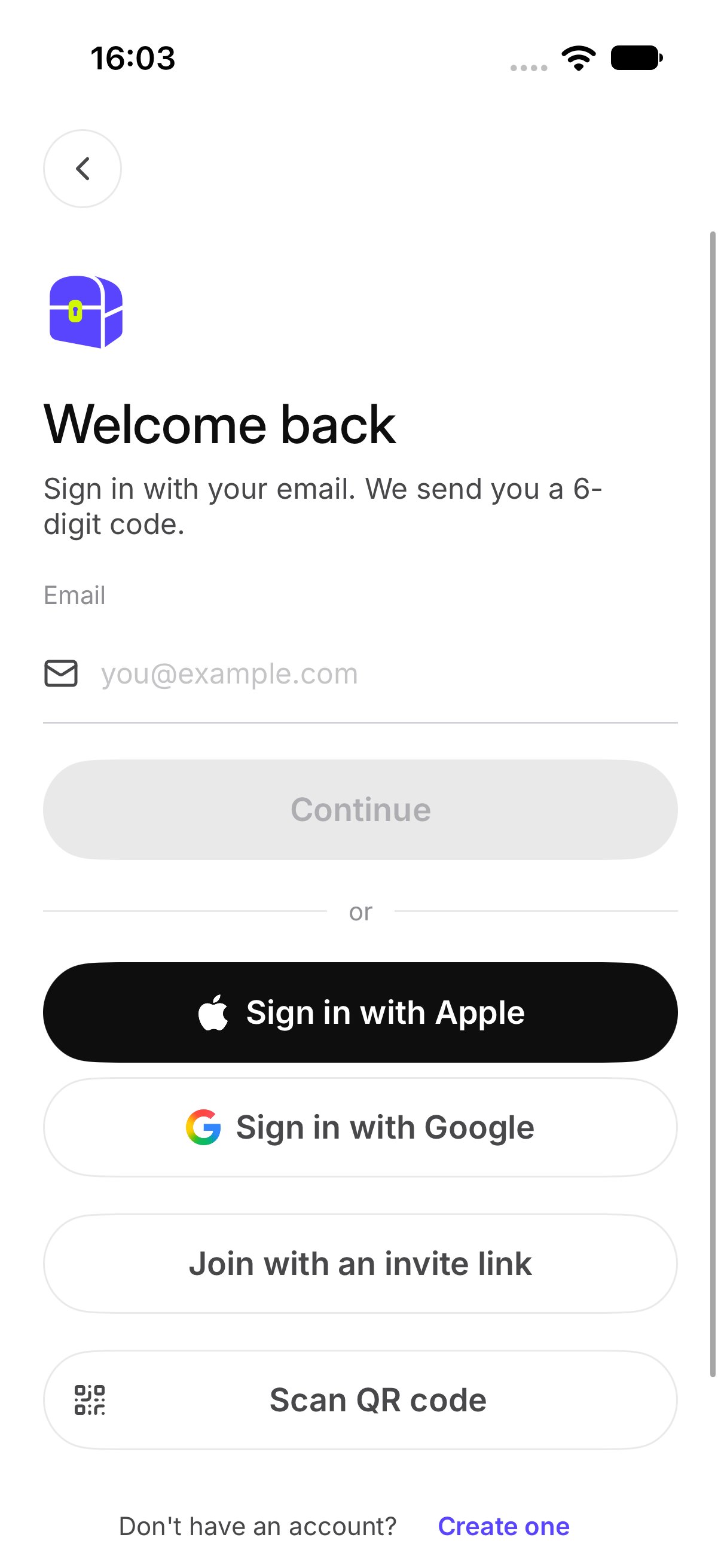
Signing in uses the email on your account. OurChest sends a fresh 6-digit code. There is no password.

How do I sign in?

  1. On the welcome screen, tap I already have an account.
  2. On Welcome back, enter your Email. The screen says Sign in with your email. We send you a 6-digit code.
  3. Tap Continue.
Under the field, OurChest also says We email you a 6-digit code. There is no password. Sign in, with the email field Sign in with Apple and Sign in with Google are on this screen. They do not sign you in yet.

How do I enter the code?

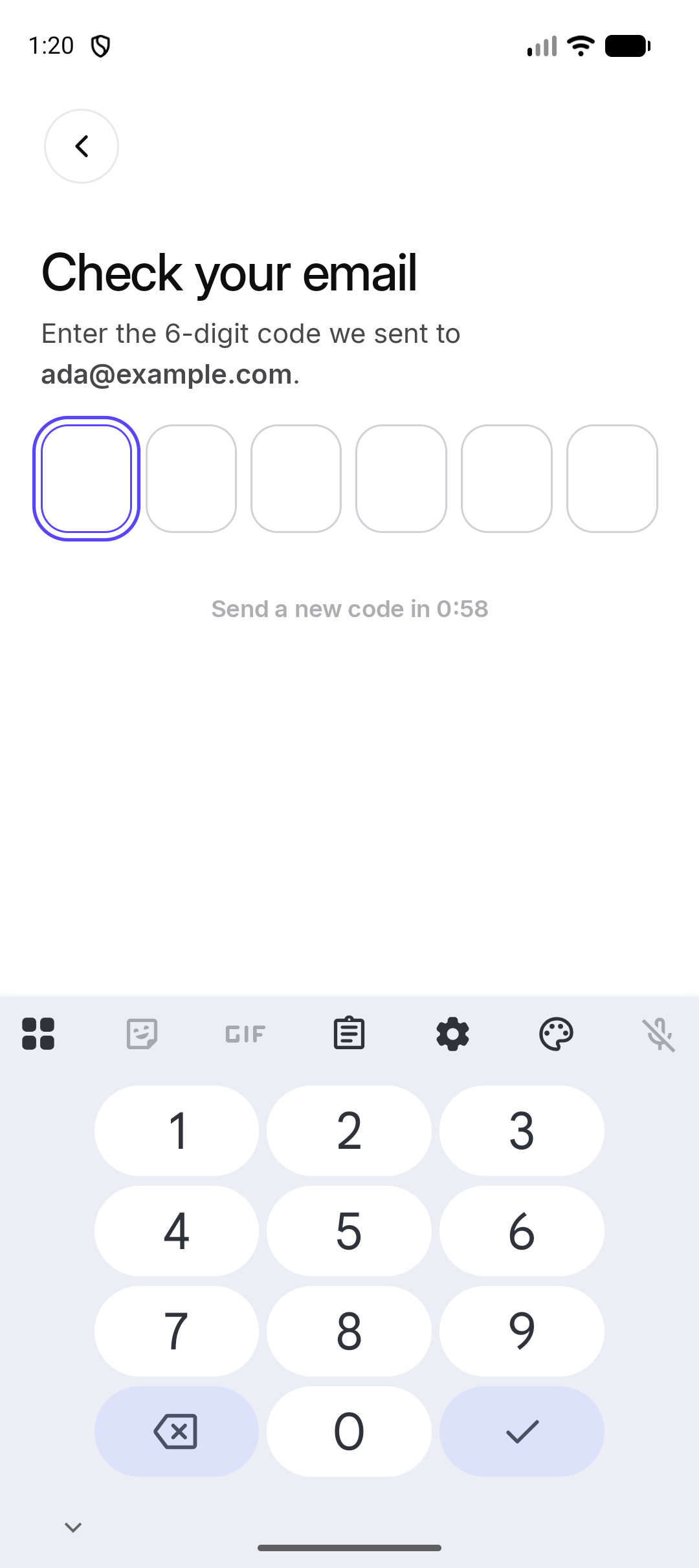
Check your email shows Enter the 6-digit code we sent to your address. Type the code from the email. Tap Send a new code if you need another one. OurChest shows New code sent. Check your email, with the six code boxes Android. The iPhone screen uses the same code boxes.
What if the code does not work?

OurChest says That code did not work. Check it or send a new one. Look at the email again, or tap Send a new code. Use the newest code. An older one will not work.

Can I join without an account?

Yes. On the sign-in screen, tap Join with an invite link or Scan QR code. You join that Chest with your name. You can add an email later if you want the Chest on another phone. Those two buttons are also in the + menu on the Chests screen. Join a Chest and Scan a QR code explain each one.