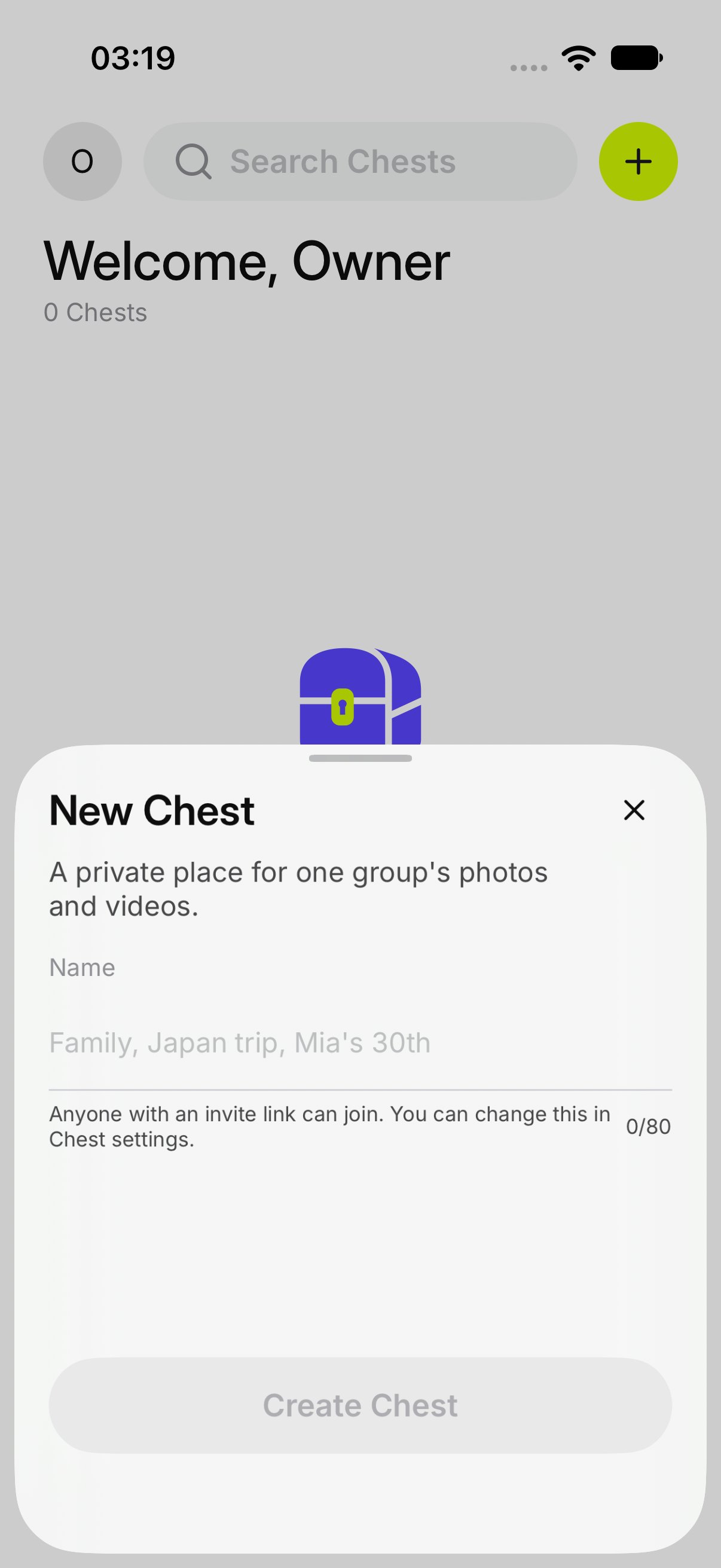
Use a name the group will recognize. The placeholder is Family, Japan trip, Mia’s 30th.The name is 1 to 80 characters. If it is empty or too long, the screen says Use 1 to 80 characters.You can rename it later from Chest settings.
The sheet says Anyone with an invite link can join. You can change this in Chest settings.A new Chest lets people in as soon as they use a working invite. They still need that invite. The Chest is not public. To make people wait for you first, turn on Ask before people join in Chest settings.
If you have typed a name and you close the sheet, OurChest asks Discard this Chest?Tap Keep editing to stay. Tap Discard to throw away the name. Nothing is created until you tap Create Chest.