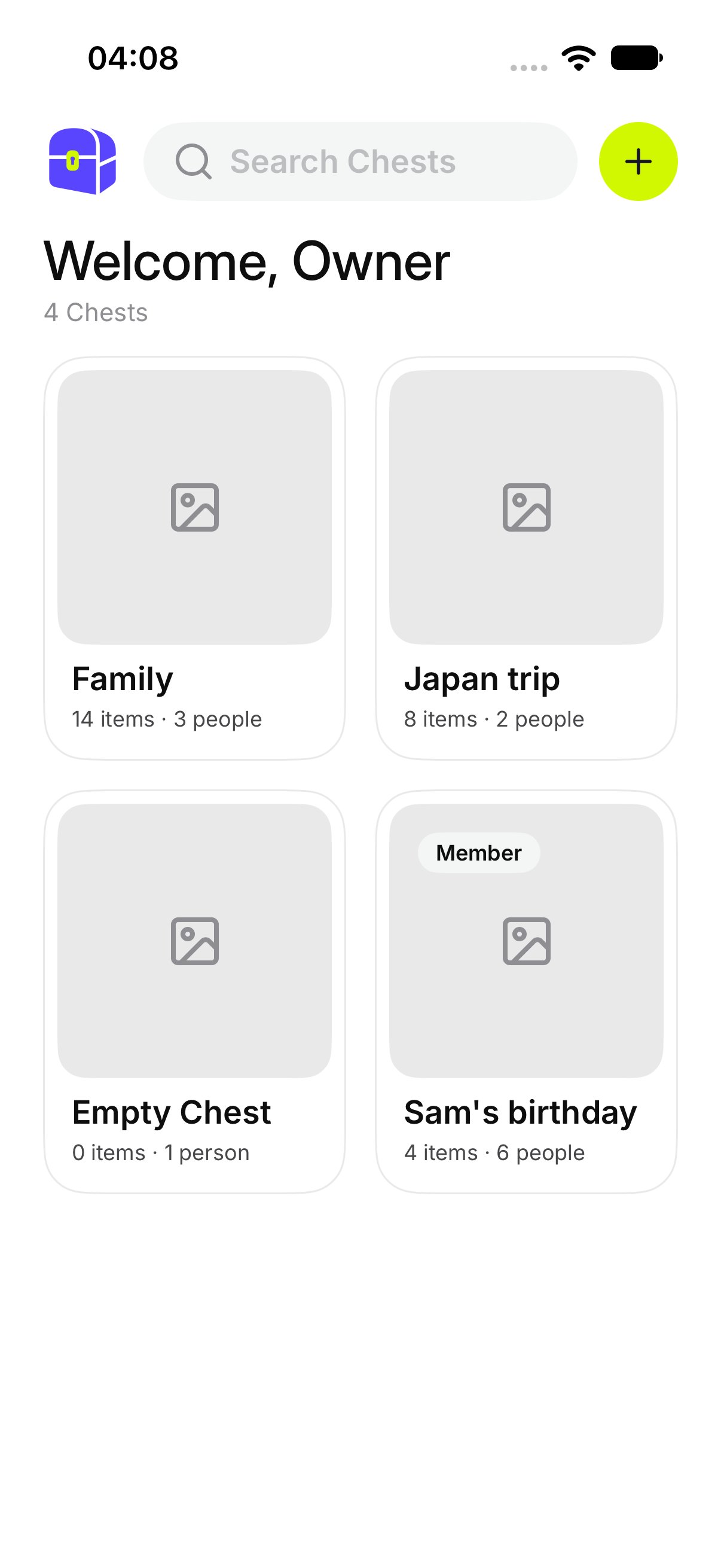
Chests is the home screen. Each card is one Chest you own or one you have joined.

How do I open a Chest?

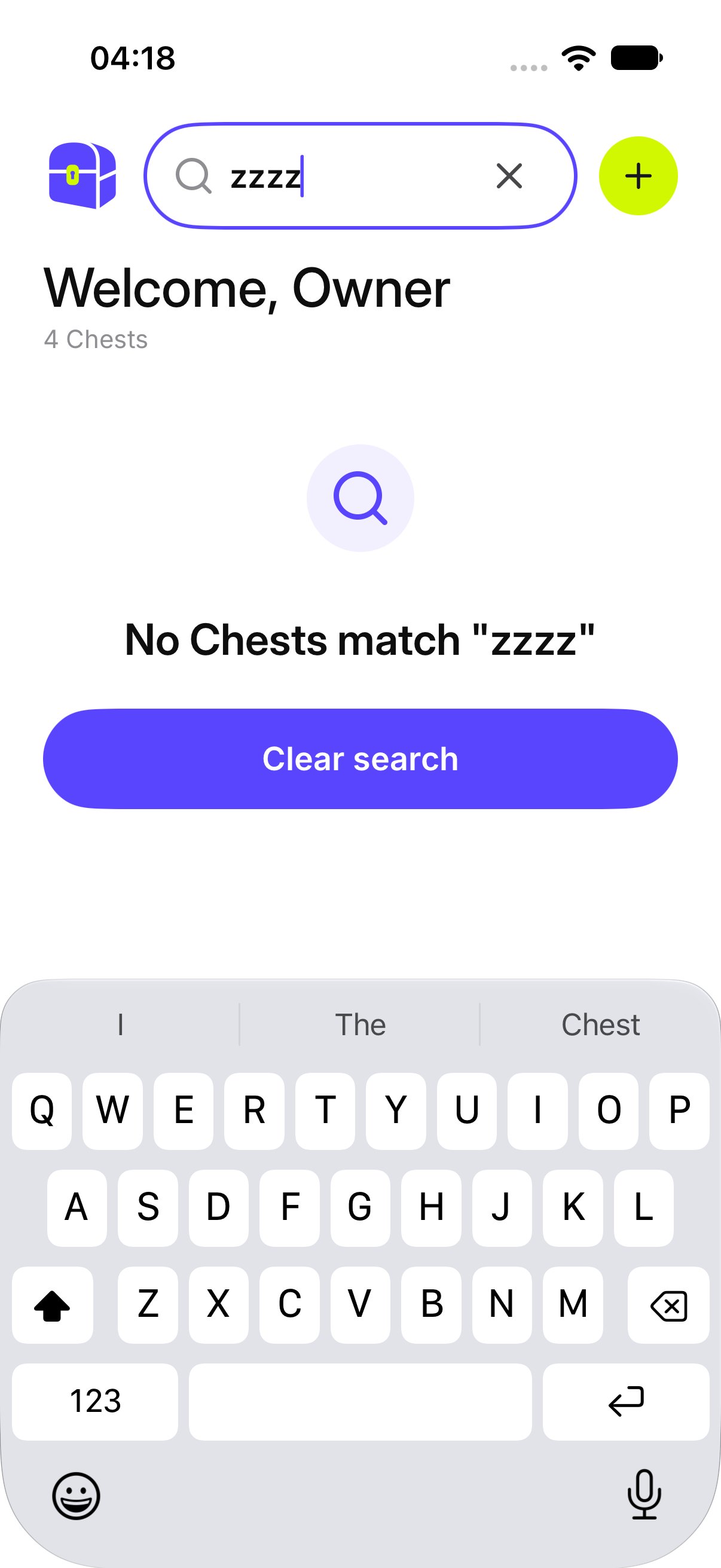
Tap the card. You land on that Chest, with All, Photos, and Videos across the top. Chests, with a card for each Chest Tap Search Chests and type part of a name. Cards that do not match drop away. If nothing matches, OurChest says No Chests match that word. Tap Clear search to see the full list again. Search with no matching Chest
What does the card menu do?

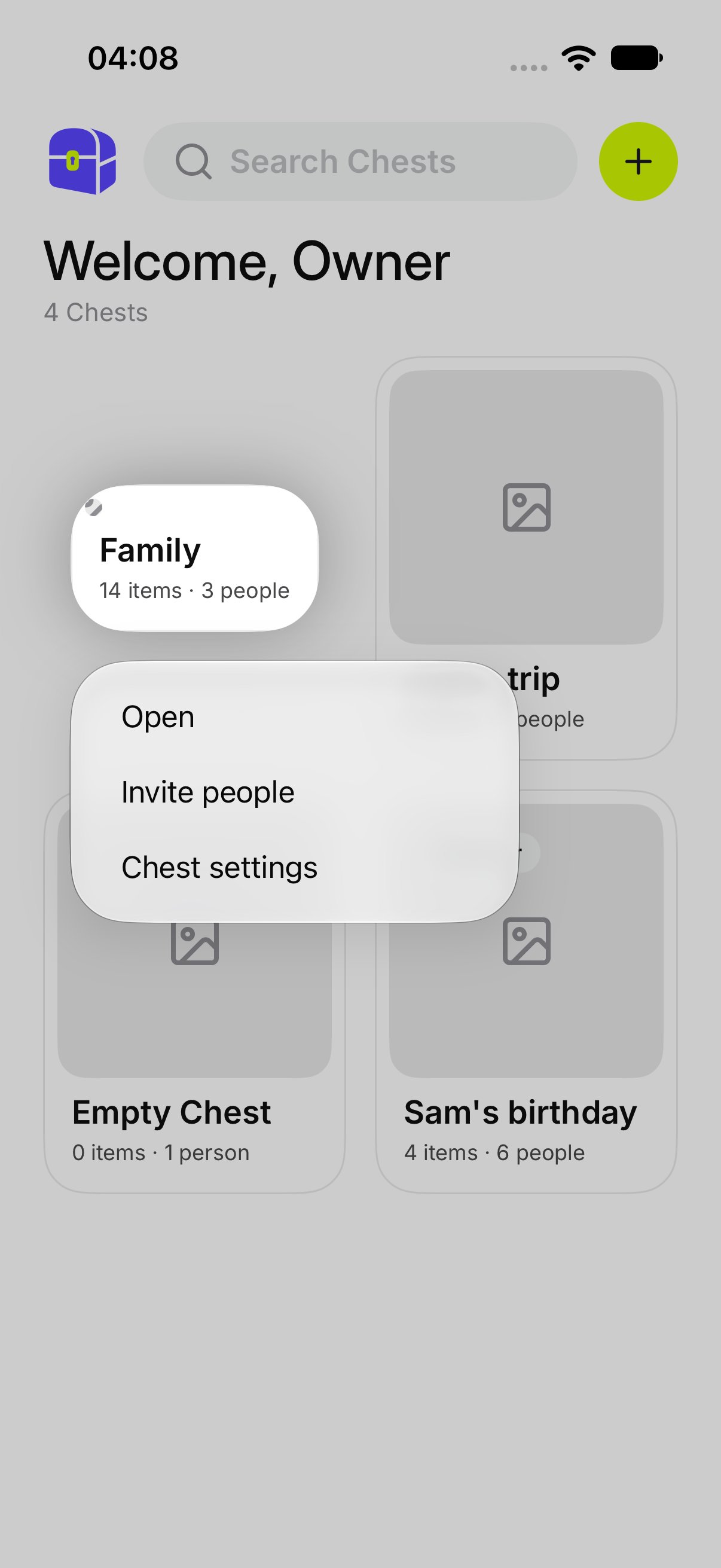
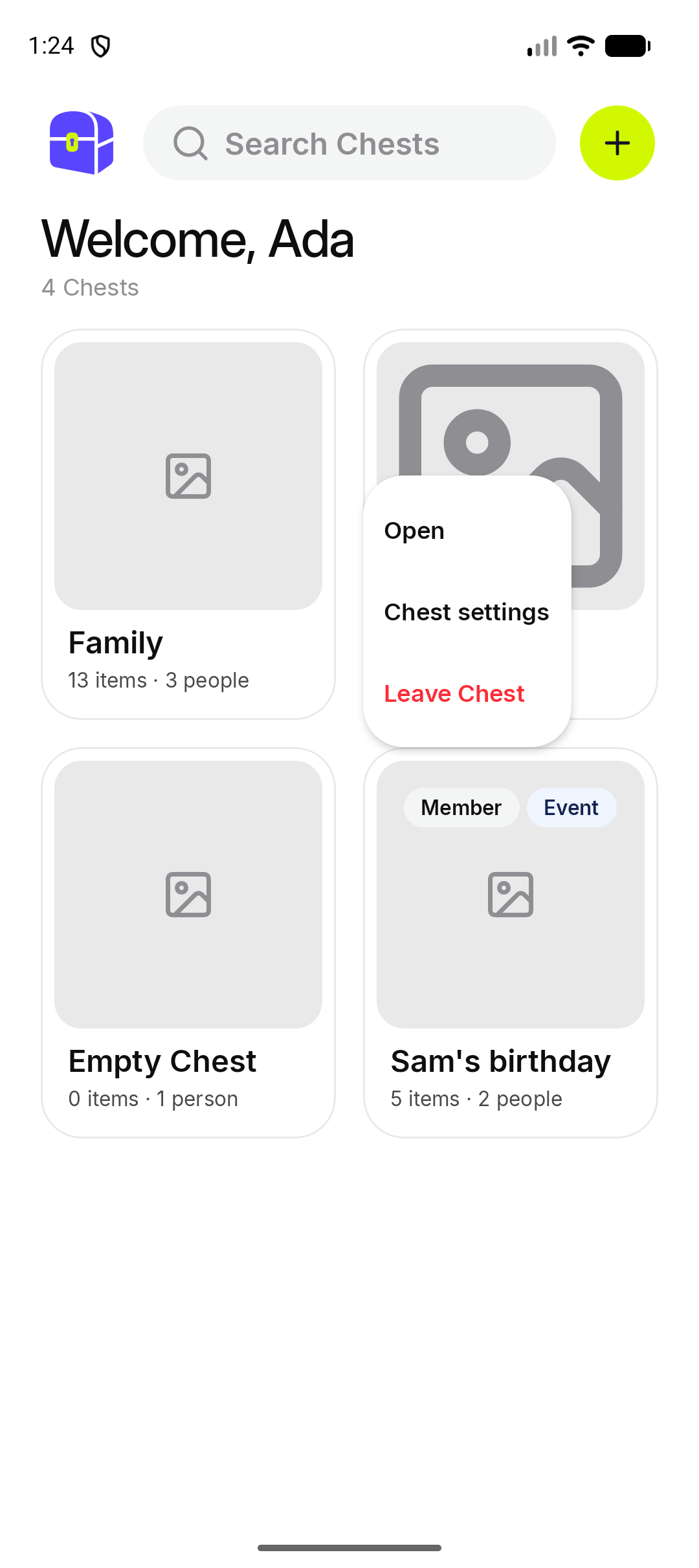
Press and hold a card, or open its menu. On a Chest you own, the menu has Open, Invite people, and Chest settings. The menu on a Chest you own On a Chest you joined, the menu has Open, Chest settings, and Leave Chest. A member cannot invite people. The menu on a Chest you joined Android. The iPhone menu has the same actions. Leave Chest is explained in Chest settings. The only owner of a Chest cannot leave it.
What if I have no Chests?

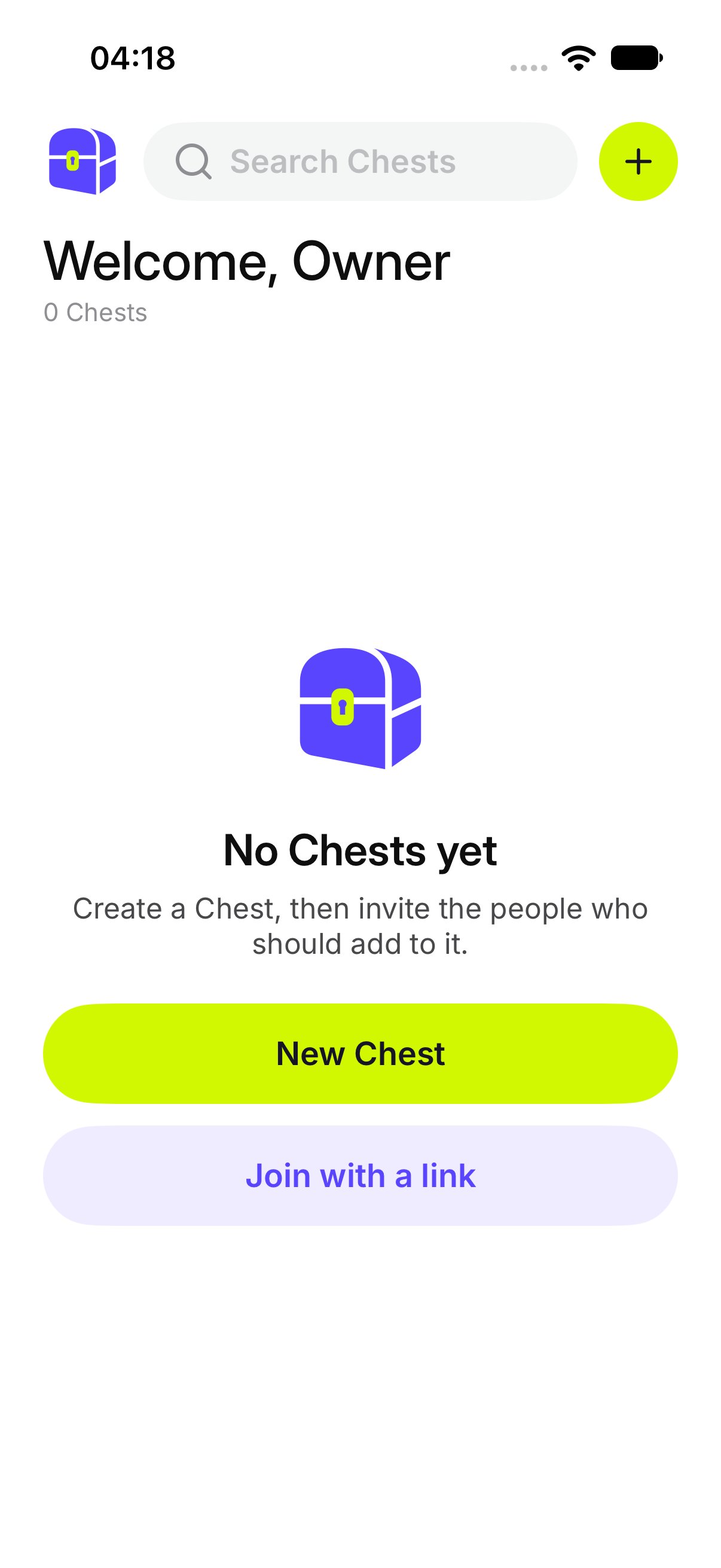
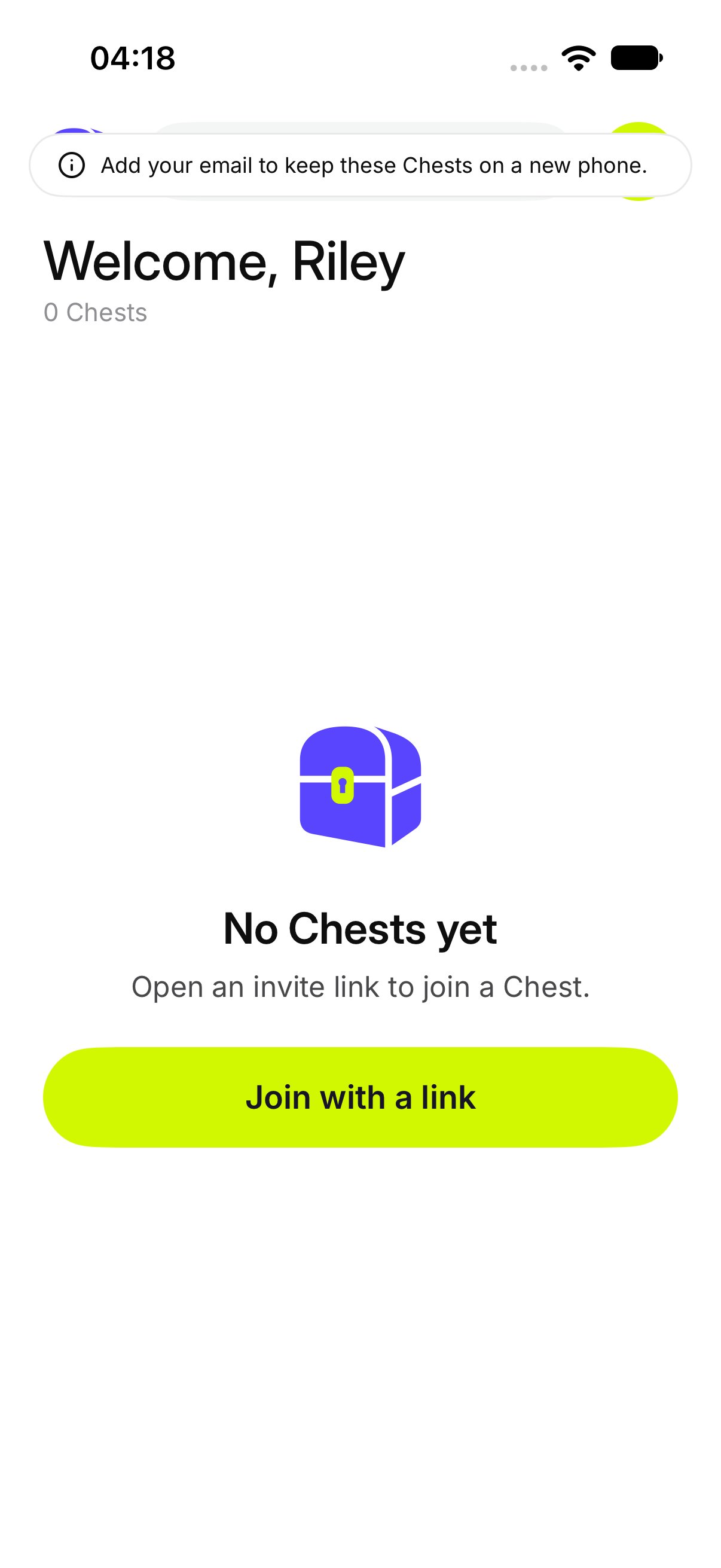
OurChest says No Chests yet and Create a Chest, then invite the people who should add to it. Tap + and then New Chest. See Create a Chest. No Chests yet A guest with no Chest sees Open an invite link to join a Chest. The + menu offers Join with a link and Scan QR code. It does not offer New Chest. A guest home, with no Chests yet iPhone. Android shows the same empty guest home.
What if the list does not load?

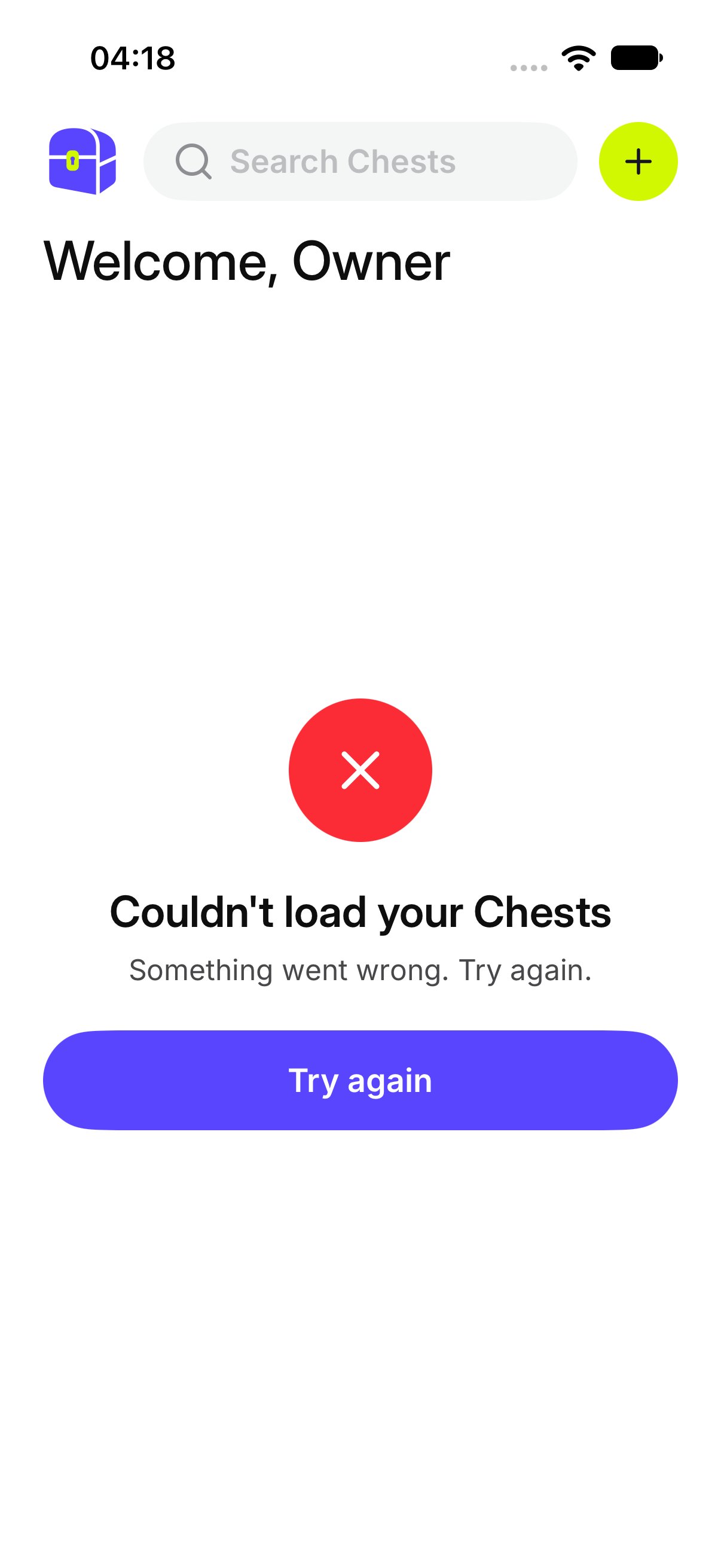
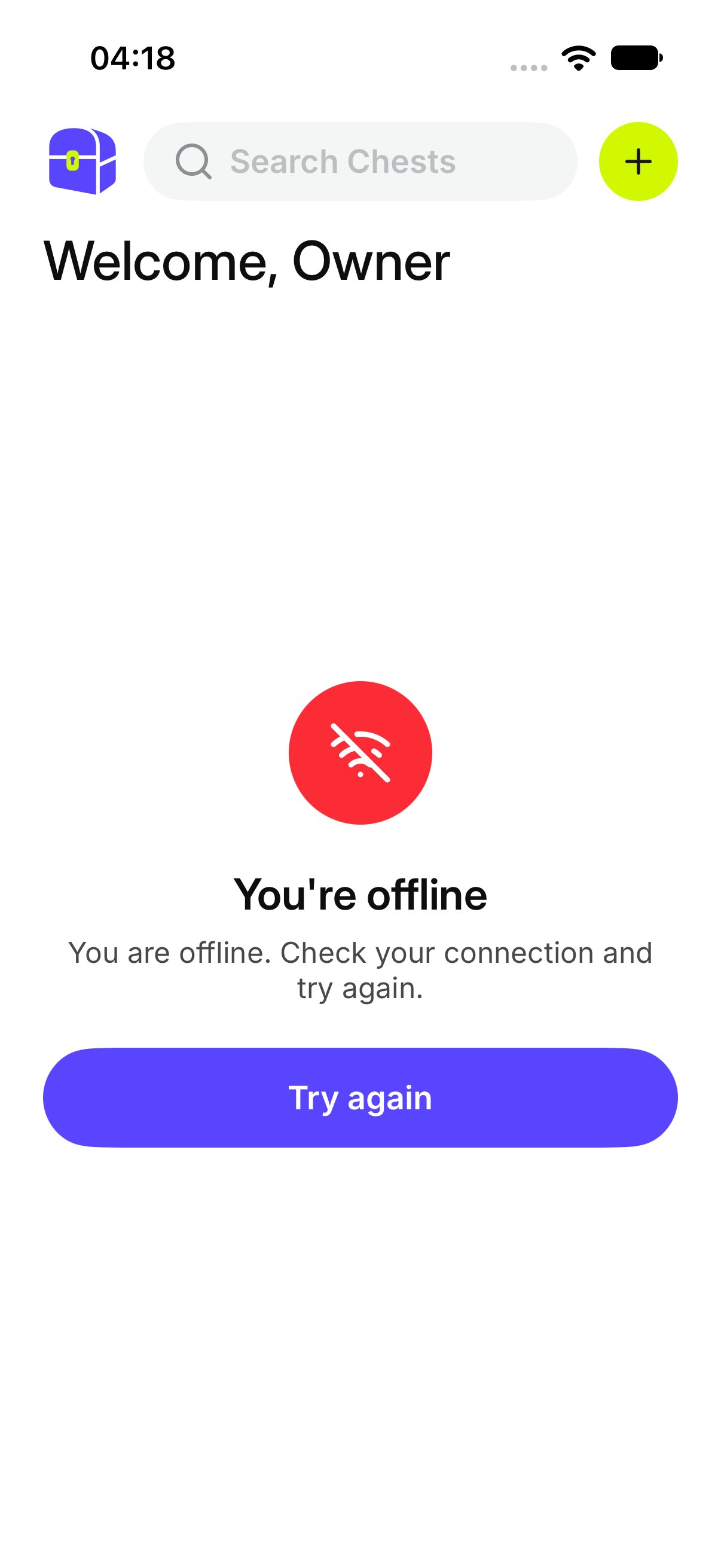
OurChest says Couldn’t load your Chests. Tap Try again. Chests failed to load If you are offline, the screen says You’re offline and Showing what was loaded last. Check your connection. Chests that were already on the phone stay visible. New ones wait until you are back online. Chests while offline