How do I scan a code?
- Tap Scan QR code. You can start from the sign-in screen or from the + menu on Chests.
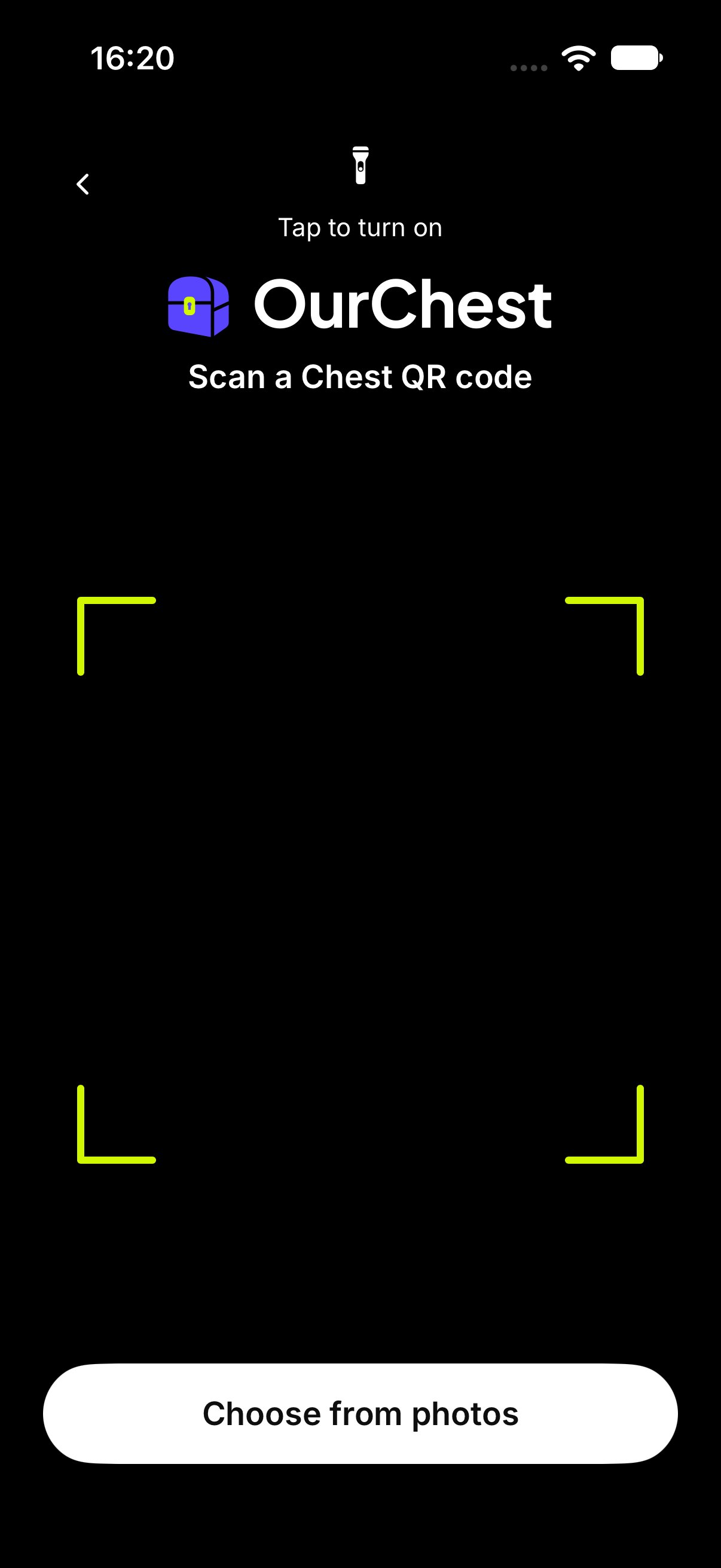
- Point the camera at the code. The title is Scan a Chest QR code.
- When the code is read, OurChest opens the join screen.
How do I use a photo of the code?
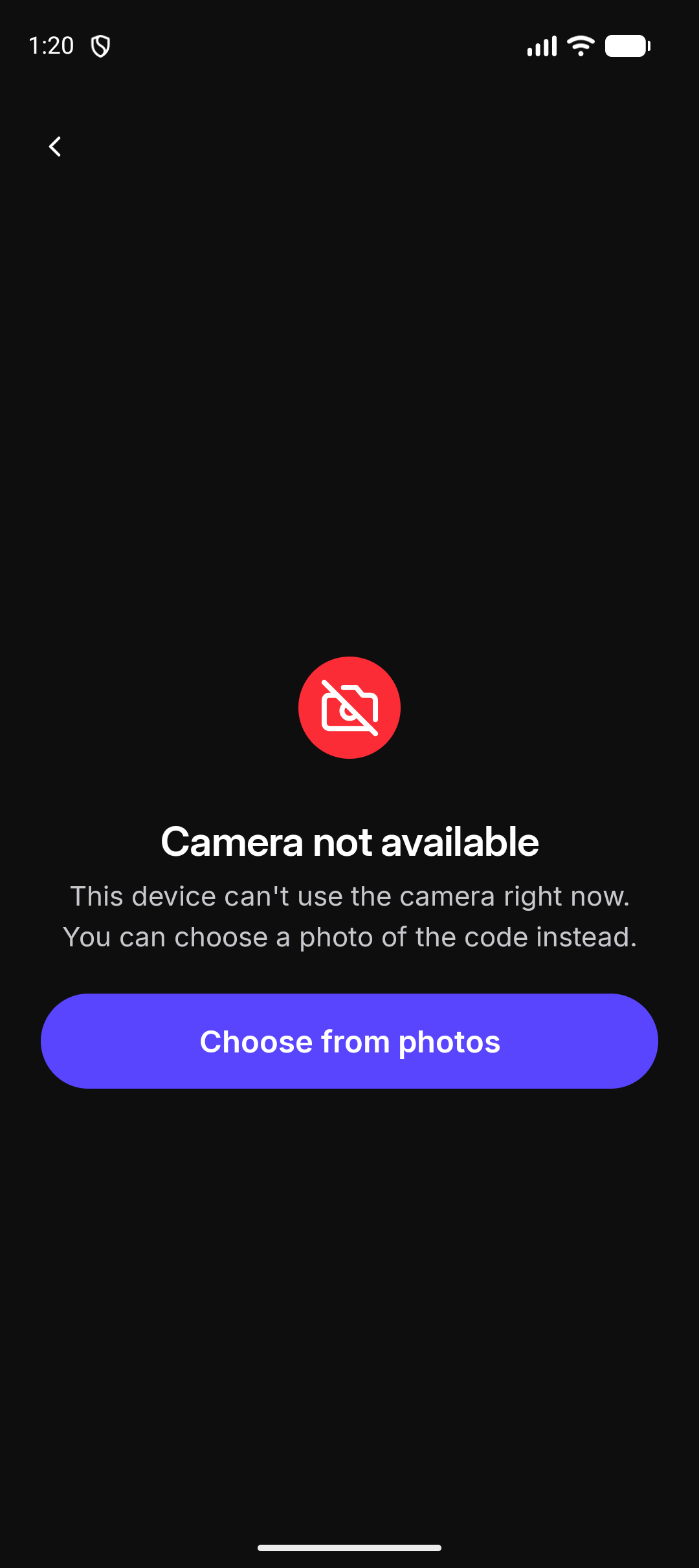
Tap Choose from photos and pick a picture of the code. If that picture has no code, OurChest says No QR code found in that photo. Tap Choose another, or scan with the camera.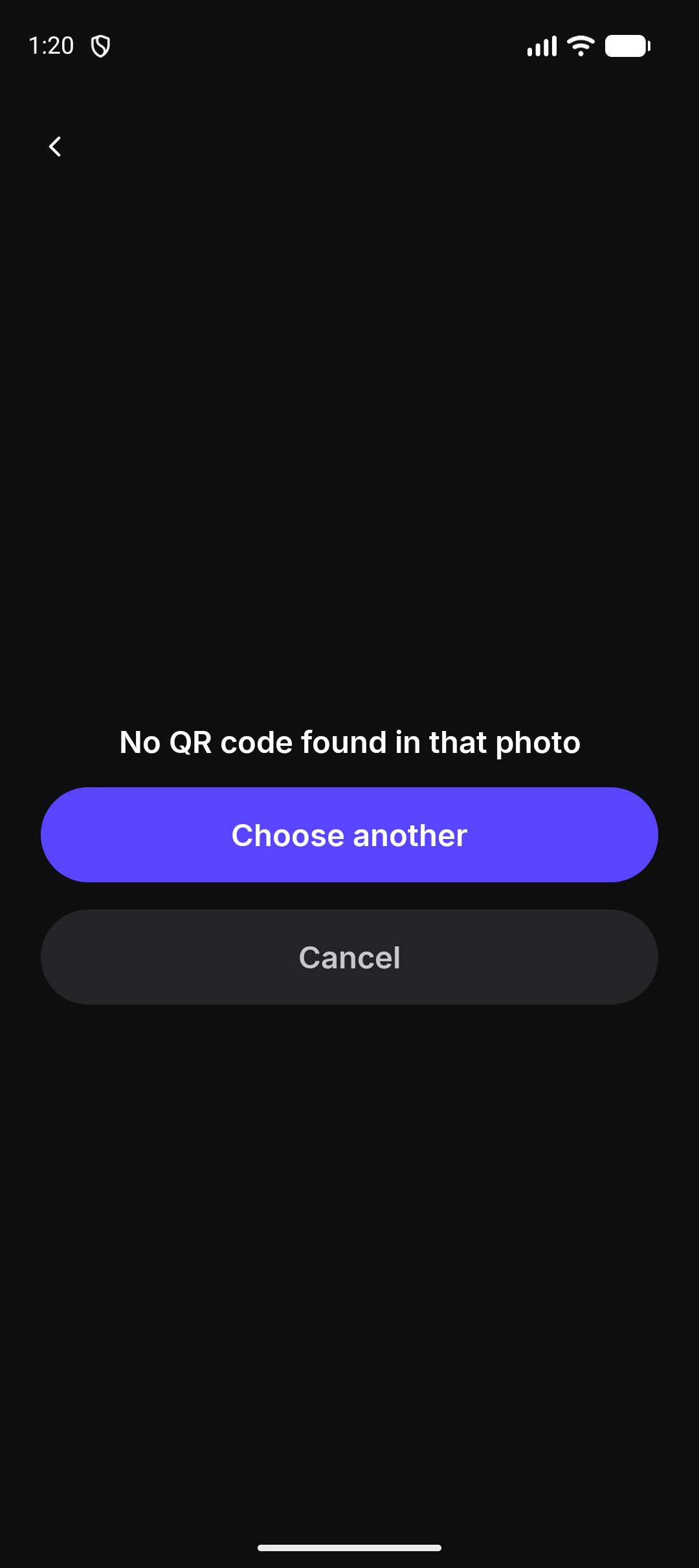
What if the camera is off?
OurChest says Camera access is off and OurChest needs the camera to scan a Chest QR code. You can also choose a photo of the code. Tap Allow camera to ask again. If the phone will not ask again, tap Open Settings and allow the camera for OurChest.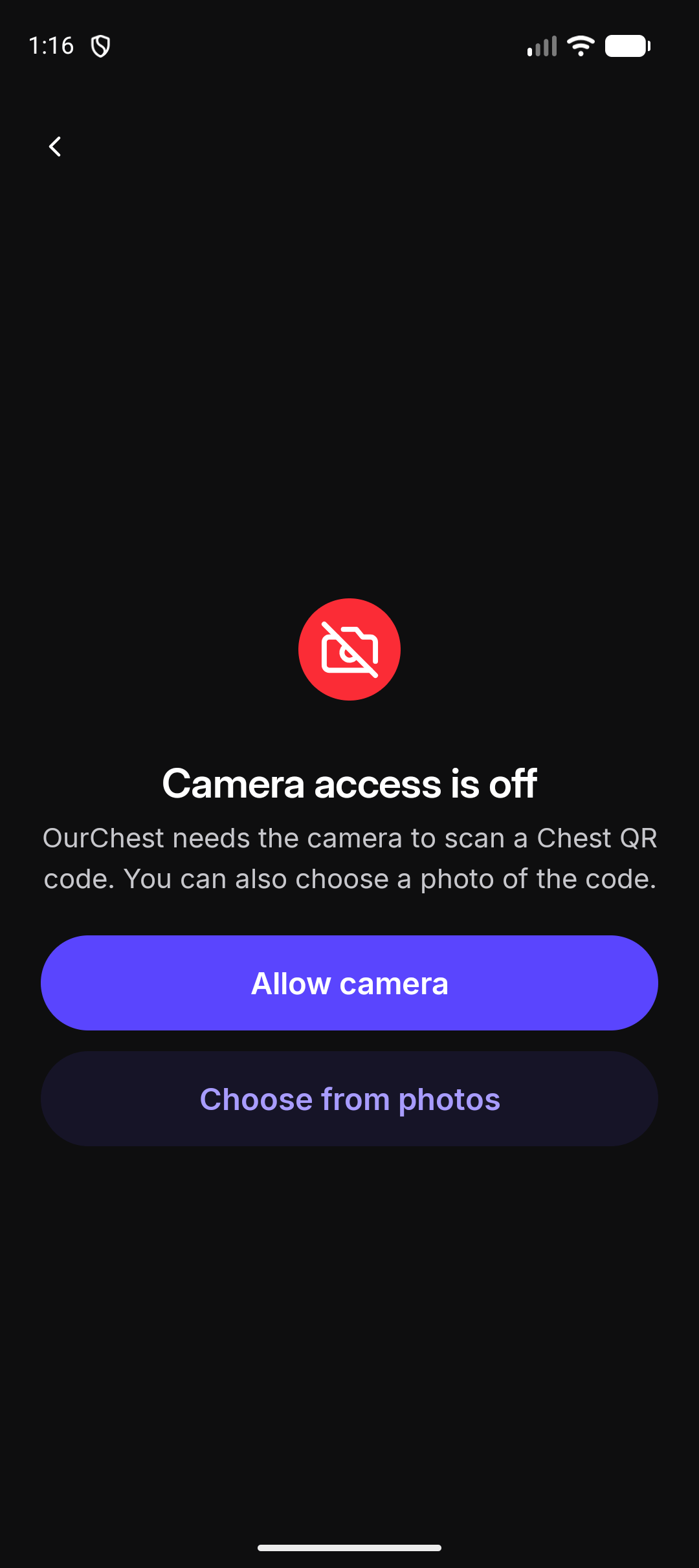
What if this is not an OurChest code?
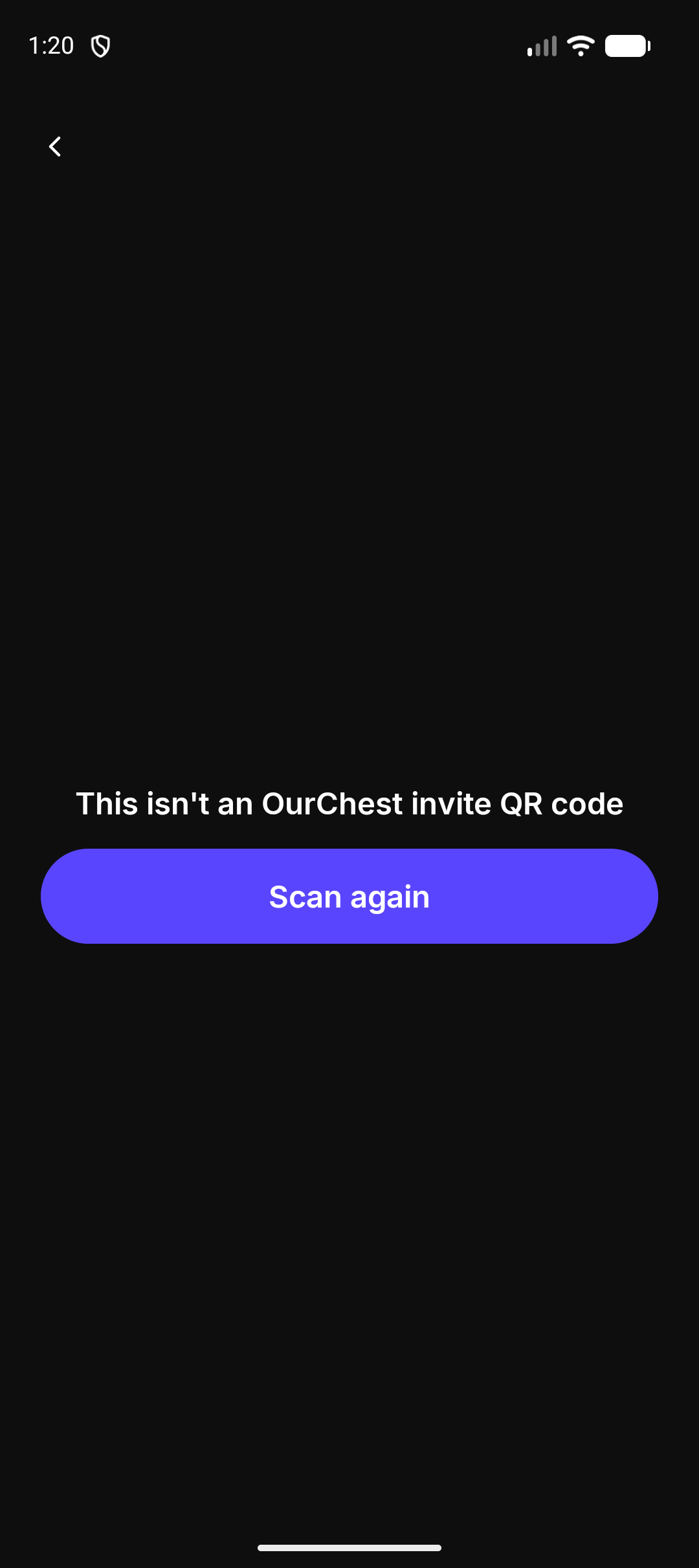
OurChest says This isn’t an OurChest invite QR code. Tap Scan again. A code from another app will not join a Chest.