How do I join with a link?
- Tap Join with a link. You can start from the sign-in screen or from the + menu on Chests.
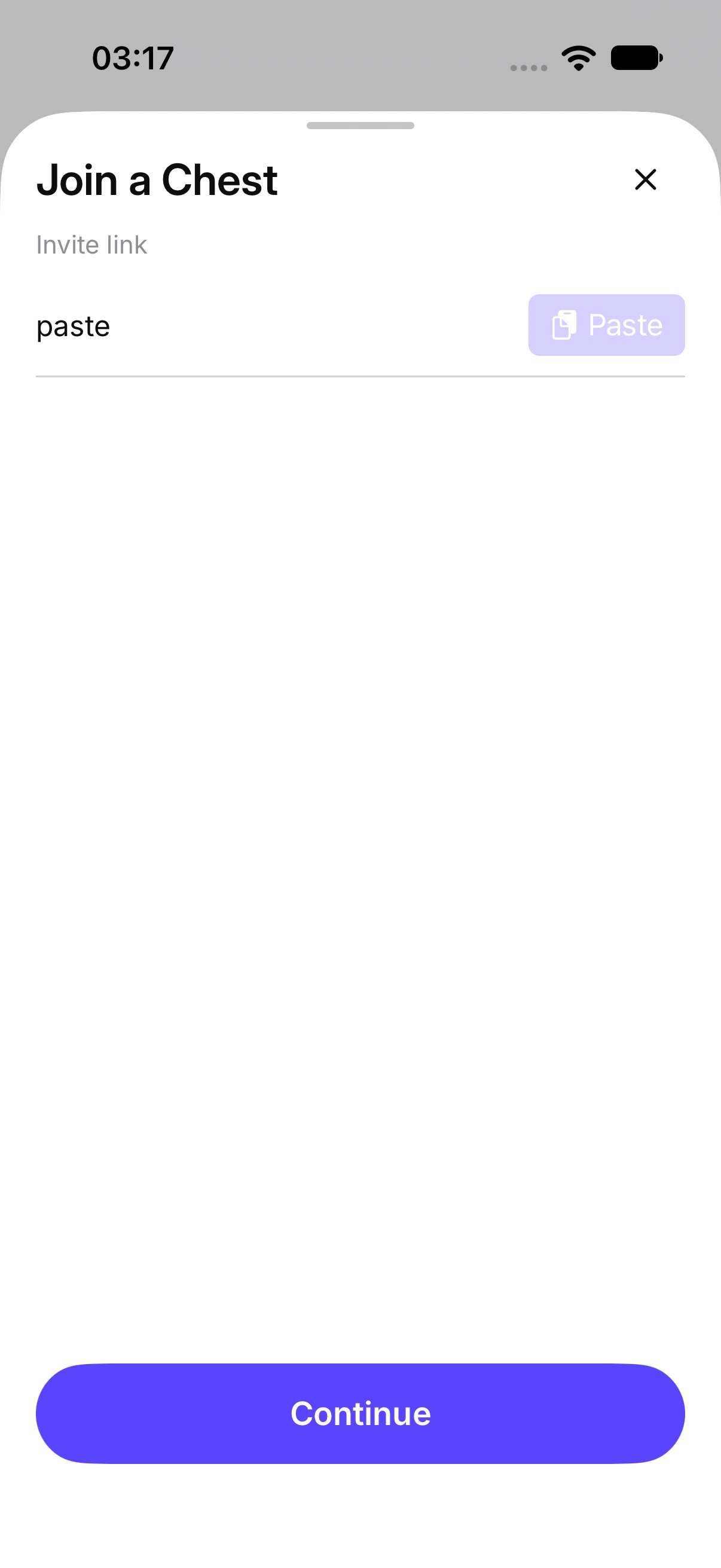
- The sheet is Join with a link. Paste into Invite link. The placeholder is Paste the link you were sent. Tap Paste to use what is on the clipboard.
- Tap Continue. OurChest shows the Chest name and Invited by the person who sent it.
What name do I use?
If this phone does not have an account yet, enter Your name. The placeholder is How people in this Chest will see you. Under the field, OurChest says You join as a guest. You can add your email later to keep these Chests. Tap Join Chest. You can add an email later from Settings.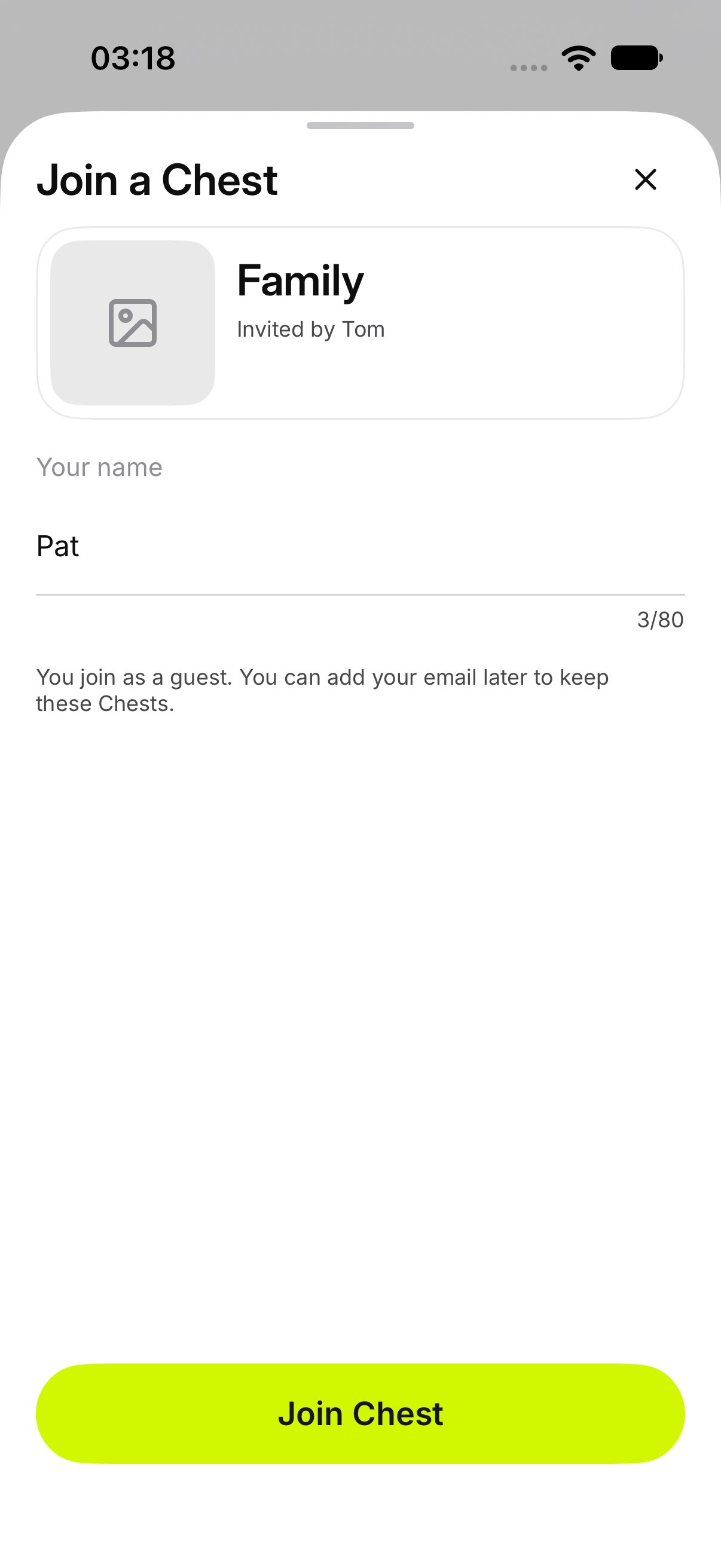
What if the owner has to approve me?
When the Chest uses Ask before people join, the sheet says The owner approves new people. After you tap Join Chest, you wait. The screen says Waiting for the person who invited you, and You will see the Chest in your Chests when they let you in. Tap Done to leave that screen. The Chest shows up when they tap Allow. If they decline, you do not get in.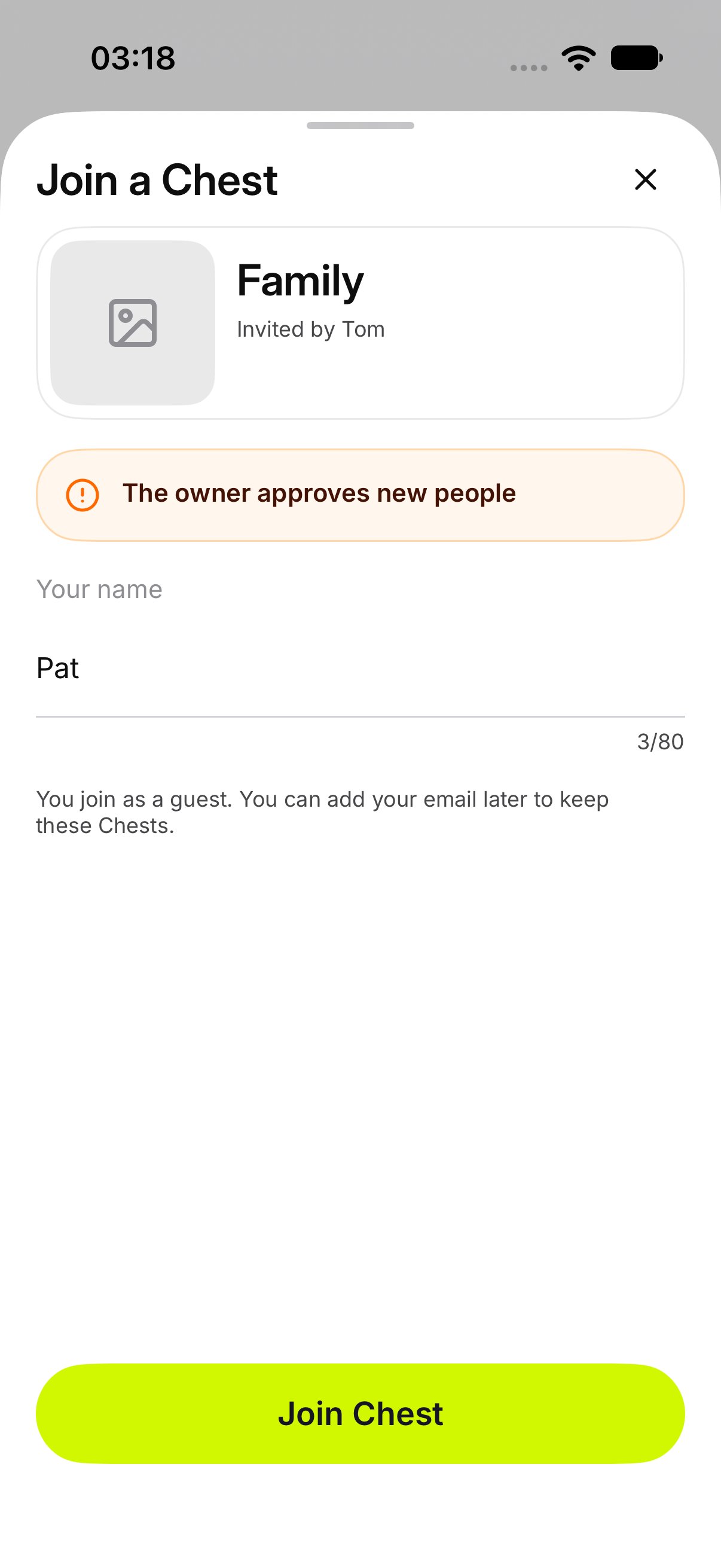

What if I already have an account?
Sign in first, then use the link. You join as yourself, and the Chest is added to this account. If this phone is already signed in as someone else, the link is not used. The screen says This phone is already signed in. This link was not used. Sign out to use it, or keep this sign-in. Tap Sign out and use this link, or keep the sign-in you already have. The same screen appears when you open a Chest in the app from the browser.What if the link has expired?
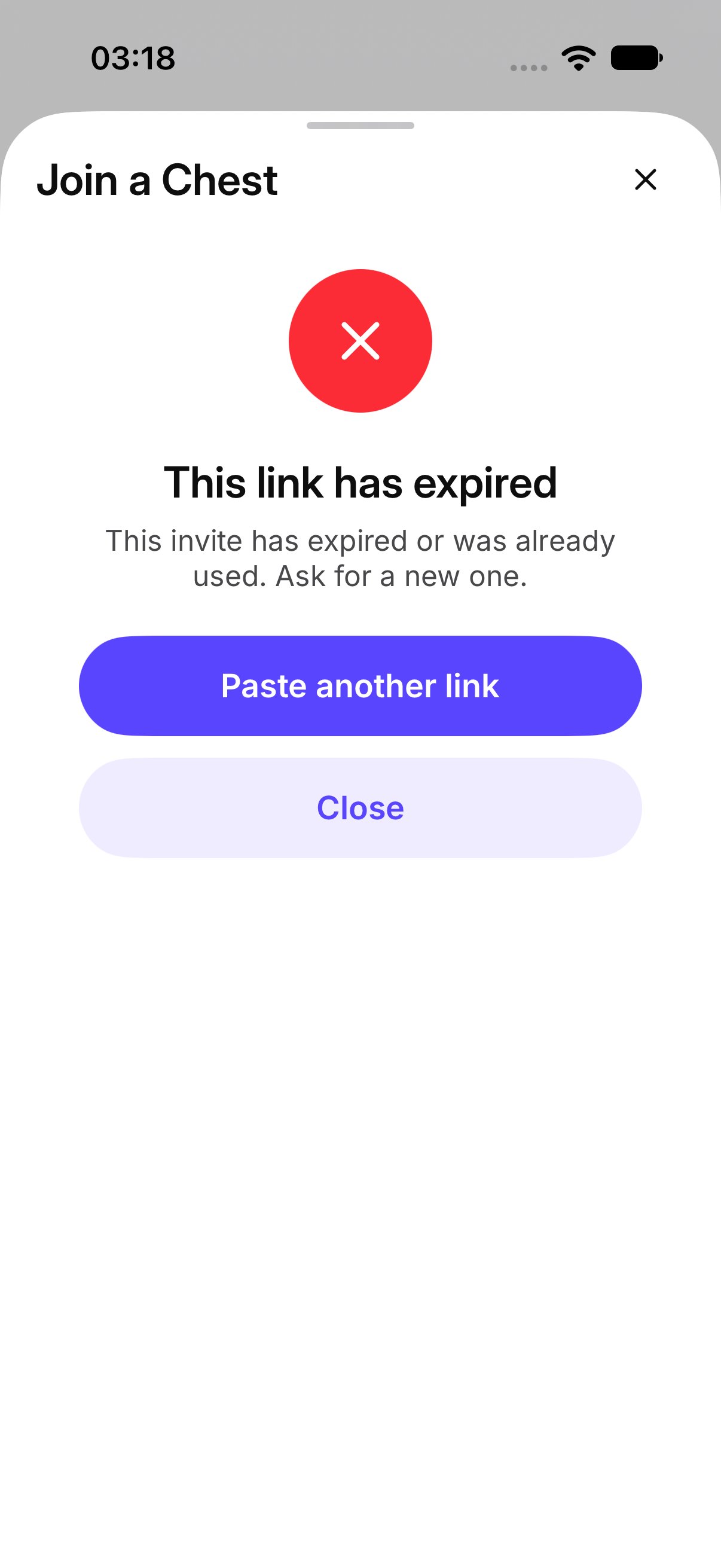
The screen says This link has expired. A used link says This invite was already used. Ask for a new one. An expired one says This invite has expired or was already used. Ask for a new one. Tap Paste another link, or ask the owner for a new invite.