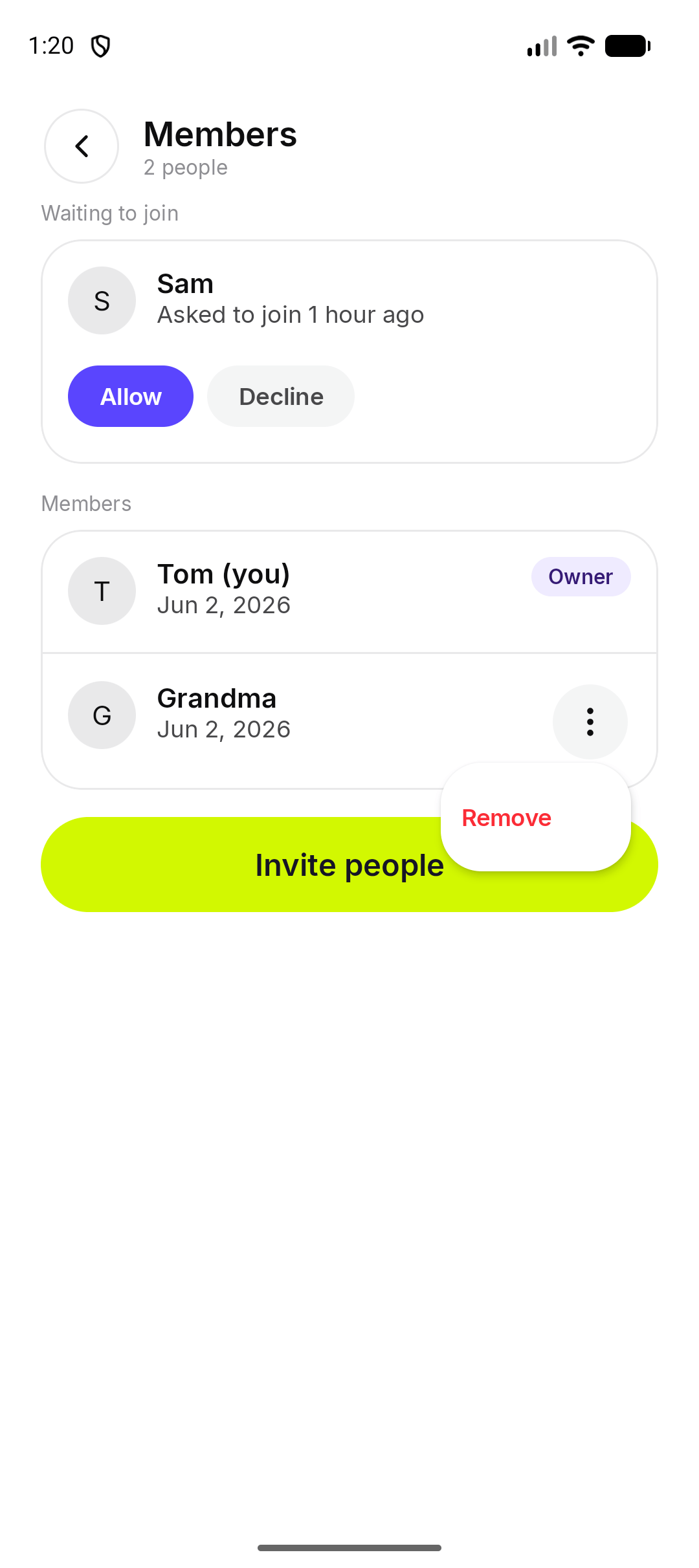
How do I see who is in the Chest?
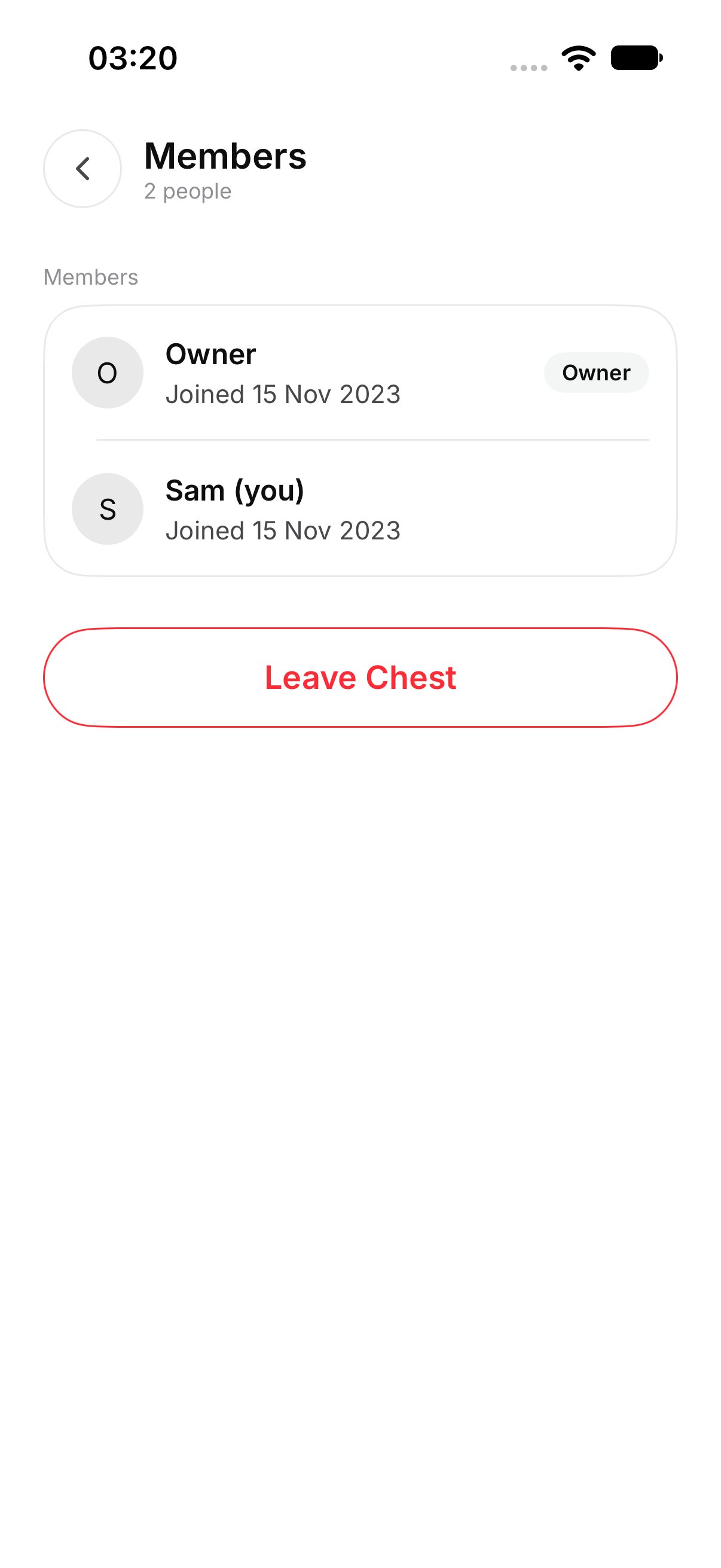
Each person is listed by the name they joined with. Your own row says (you) after your name. Under a name, the row can say Joined and the date. The owner is listed with the other people who are in the Chest.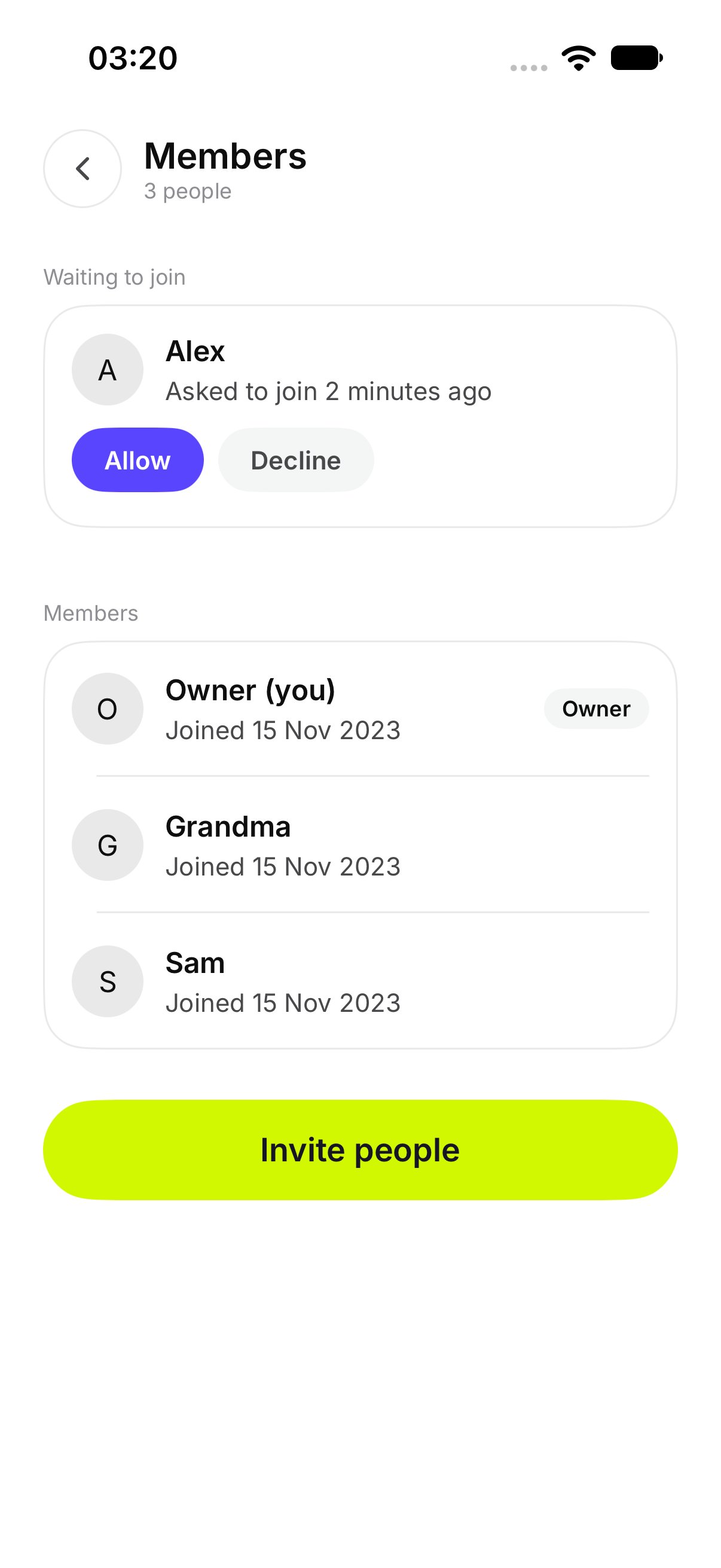
How do I let someone in?
This is only for the owner, and only when Ask before people join is on. People who are waiting appear under Waiting to join. Tap Allow. They can then see the Chest.How do I decline a request?
Under Waiting to join, tap Decline. That person does not get in.How do I remove a member?
On their row, tap Remove. They lose access. OurChest shows their name and removed. They drop off the list. Files they added stay in the Chest, which is the same result as Leave Chest.